3 posts tagged with "Coding"

View All Tags

Using Helium To Automate Your Home

· 24 min read
Nik
Site Owner

This is a project taking you through the basics of how to use the Helium LoRaWAN for projects around the home. Relax, we won't be automating your entire house and accidentally unleashing Terminator. This is just a very simple start into using Helium.

At the end, if you follow all the directions, you'll have a light that turns on when a door or gate opens. Super simple. Here's what it looks like in broad strokes.
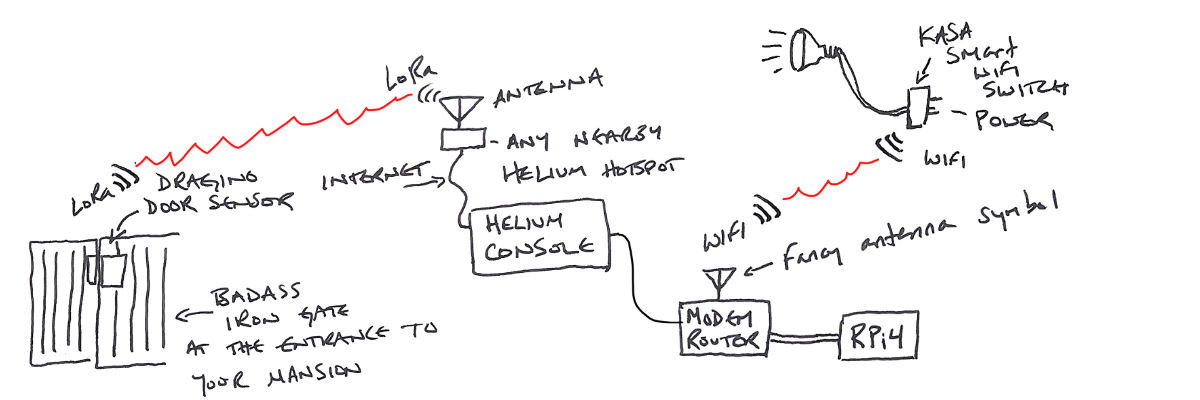
Obviously you have a badass iron gate at the entrance to your mansion. You're in crypto, right?

Here's how the flow works in writing, with a little more detail.

The door sensor sends an "open" or "close" packet of data along with and identification of the sensor ("I'm a door sensor named 2r782sdhvwjf, and the door is now open") over LoRa to any nearby Hotspot.

That Hotspot passes the info on to the Helium router via the internet. When the data gets to the router, the router says, "Hey, anyone want to buy this packet from 2r782sdhvwjf?"

Your Console account (which you've set up to watch for packet from 2r782sdhvwjf) says "Hell yes I'll buy that packet!", pays with Helium data credits, and receives the packet data.

The data from the packet goes into your Console, where it's decoded and passed on to an "integration". The integration in this case is to an MQTT (Message Queuing Telemetry Transport) "broker".

A "broker" in this case is an application that receives and forwards MQTT messages. That MQTT message is sent by the broker to an open source program called "Home Assistant". Home Assistant lives on the Raspberry Pi.

The Raspberry Pi receives the data from the MQTT broker, processes it in Home Assistant, and spits out a nice little "open" or "close" message which it then transmits over WiFi to your Kasa (or any smart plug) saying, "Hey dawg, door's open, get that light on stat!"

And that's it, at broad strokes. Ok, let's dive into how to do this thing at home. We'll start with spending money, about $130 total. Relax, most of that is the Raspberry Pi, and once you have one you can use it to do all sorts of other things. Think of the Pi as a Swiss Army knife. This time you're buying it for cutting bread with the knife, but in the future you can use the corkscrew for wine, the screwdriver for opening that wooden shipping box with the Lister engine you'll wonder how you lived without, and the tweezers for removing that SD card. But...let's not get ahead of ourselves.

Purchase List

[ninja_tables id="6052"]

I put in the option for an indoor or an outdoor Kasa plug, which depends on where you have your light plugged in.

Once you've received all the physical things we'll go through the following steps in order:

  • Door Sensor
    • Add the sensor as a Device
    • Add a Decoder function
  • Home Assistant (HA)
    • Install on RPi and confirm it's available on your network
    • Configure Home Assistant
  • MQTT Messaging Broker
  • Connect everything

Aight! Let's get this party started!

Add The Sensor To Helium Console

Step one: Add the door sensor to Helium Console. Now, this is written in December of 2022, about a month (maybe more) before we make the giant switch from Helium running Console for everyone (10 device free limit) over to when you'll need to find another LNS (LoRaWAN Network Server). These specific instructions may not apply forever, but the broad strokes will.

Find the DEVEUI, APPEUI, and APPKEY associated with your sensor. If they're not in the box, you'll have to do some fiddly bits and buy one more thing for about $15. If that's the case, lemme know in the comments and I'll do up a tutorial on that for you. Easy when you know how. Daunting when you don't.

Ok, I'll assume you got the DEVEUI, APPEUI, and APPKEY. Enter them into the appropriate fields in Console (or whatever you end up using.). It should something like this:
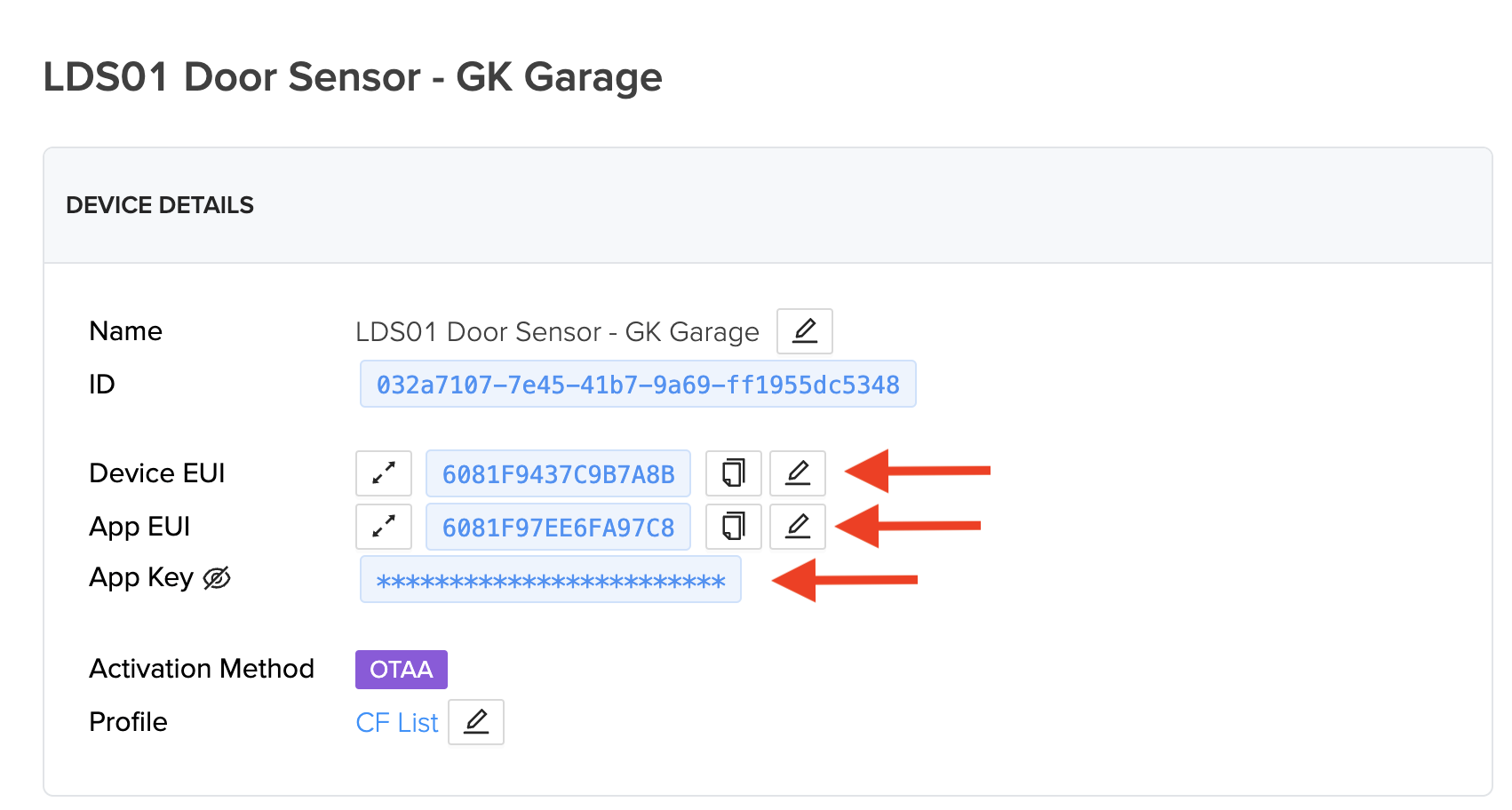
Ok, so conceptually, what we've done so far is tell the Helium network that whenever any Hotspot receives data from this sensor (identified by the all the APP/DEV EUI keys) that you'll buy that data. Relax, it won't cost you that much, and if you want you can limit how often you'll buy it or from how many different Hotspots you want to buy it (if multiple Hotspots "hear" it).

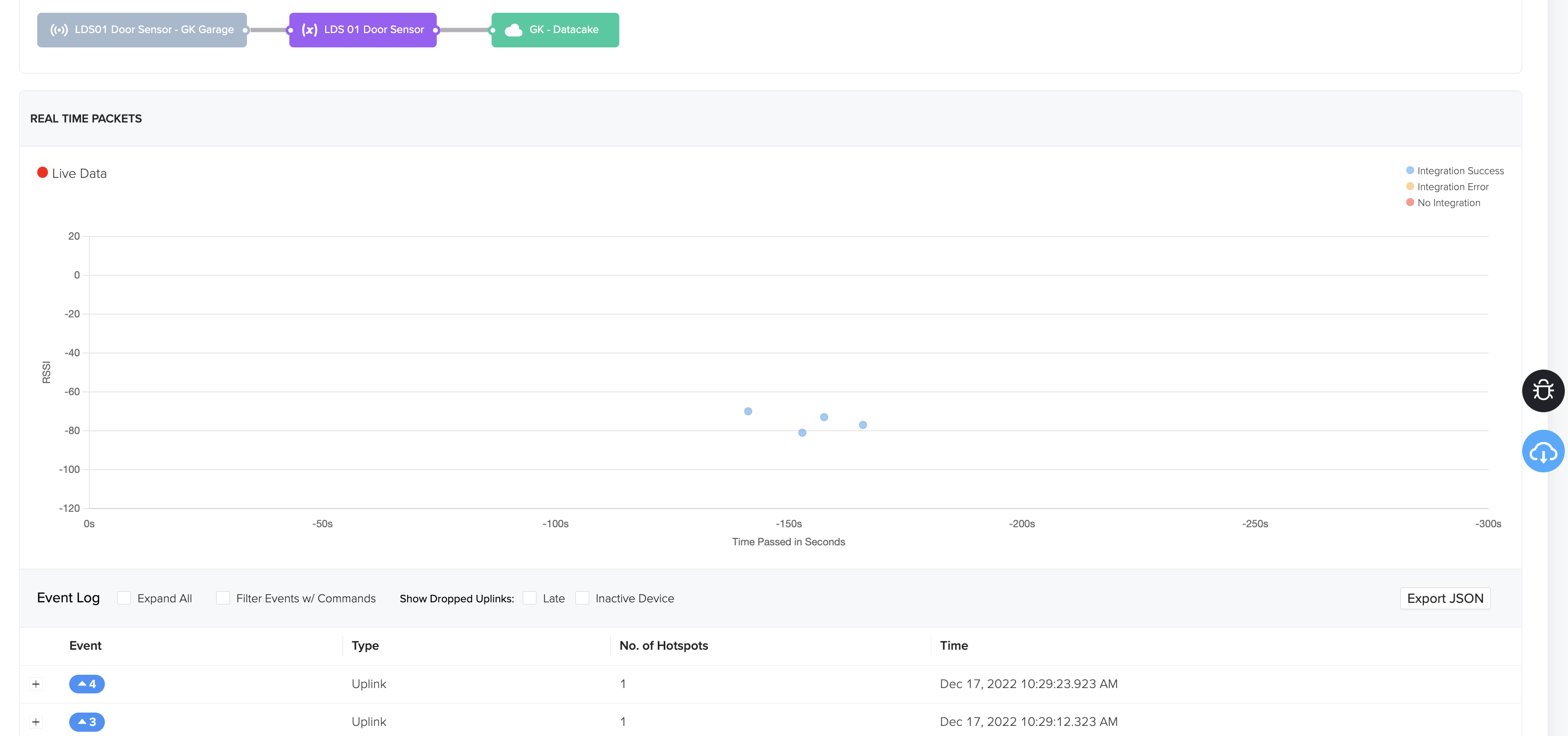
To make sure we're getting packets through, go ahead and move the sensor/magnet apart a few times, as if the door was opening and closing. Pro tip: Do NOT install the sensor until the very end, otherwise you may be doing a bunch of walking back and forth to your door.

You should see little dots marching across the screen on the Device page, like this.
Cool, so you've bought the data, now you have to decode it. Semi-confusingly, this data will need several modifications in how its presented along the path sketched out above. Think of it this way: Not all computers speak the same language, and each time the data moves from one system to another, it (usually) needs to be translated. This "decoding" is the first translation.

Add The Decoder

For this (and any) sensor, the manufacturer will usually provide you with the decoder to use. In this case, Helium also maintains a Github repository with a decoder for this device. Confusingly, the decoder for this device in Helium's Github is called an LDS02, even though the device is an LDS01. I'ma use the Helium-suggested LDS02version below. If you use any other decoder you'll have to make some changes to the code further down. If this is your first time doing this, just use Helium's version. Here's how to do that if you've never used Github before.

Go to the page here, and look for "Decoder-v1.5.js" in the list of files.
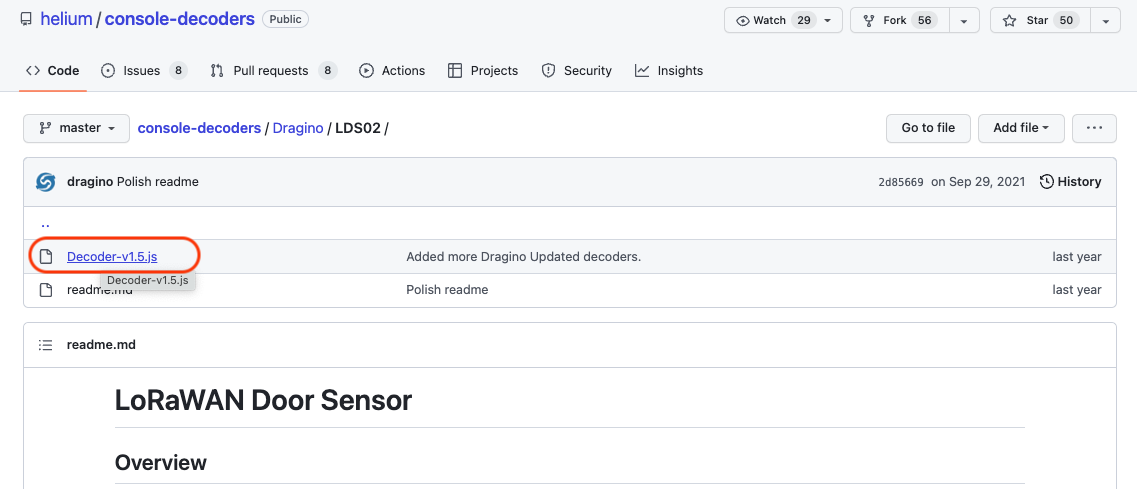
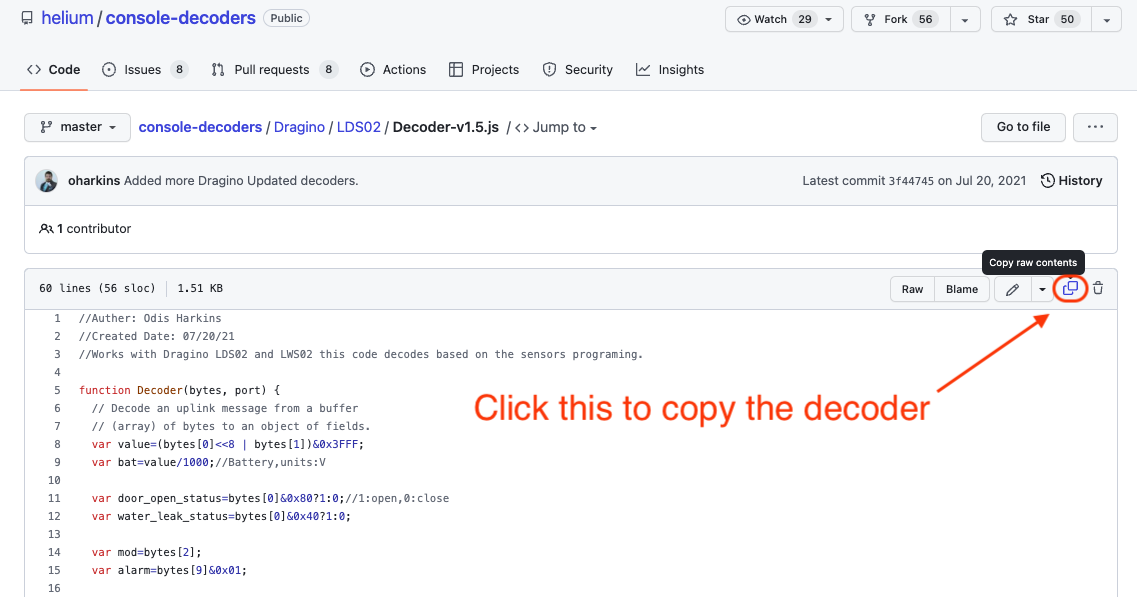
Click on that and you'll see a box with a bunch of code. Click the little double-square button up in the top right to copy this. You'll be pasting this into the Helium Console next.
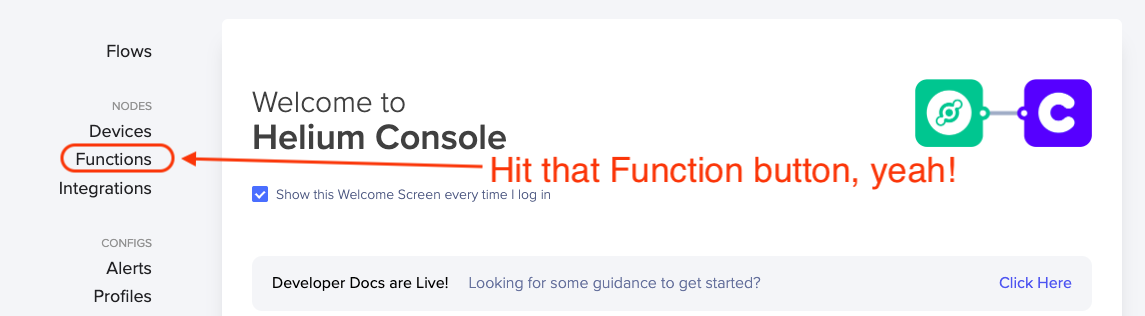
Now that you've got the decoder copied onto your clipboard, head over to Console and look for Functions on the left menu.
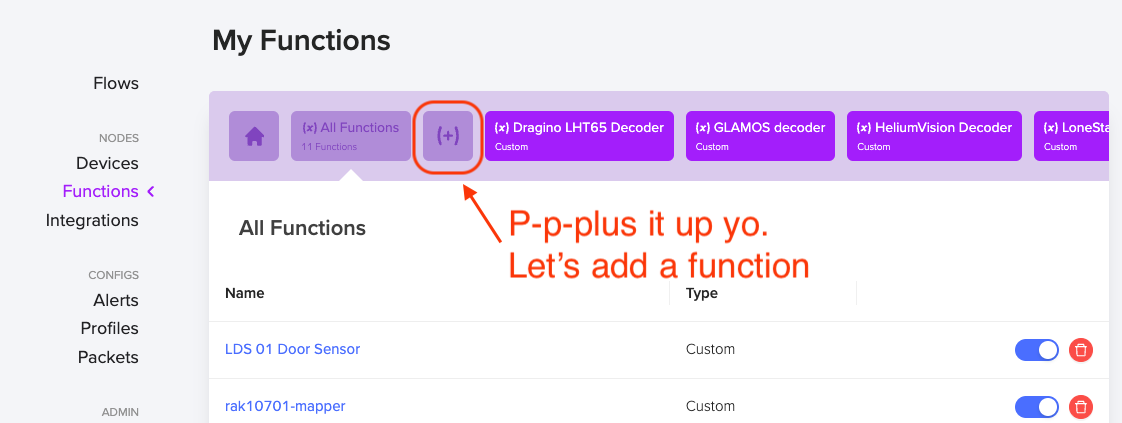
You're crushing, nice work. Now we're going to add a Function, pasting in the code you just copied. Hit the plus button.
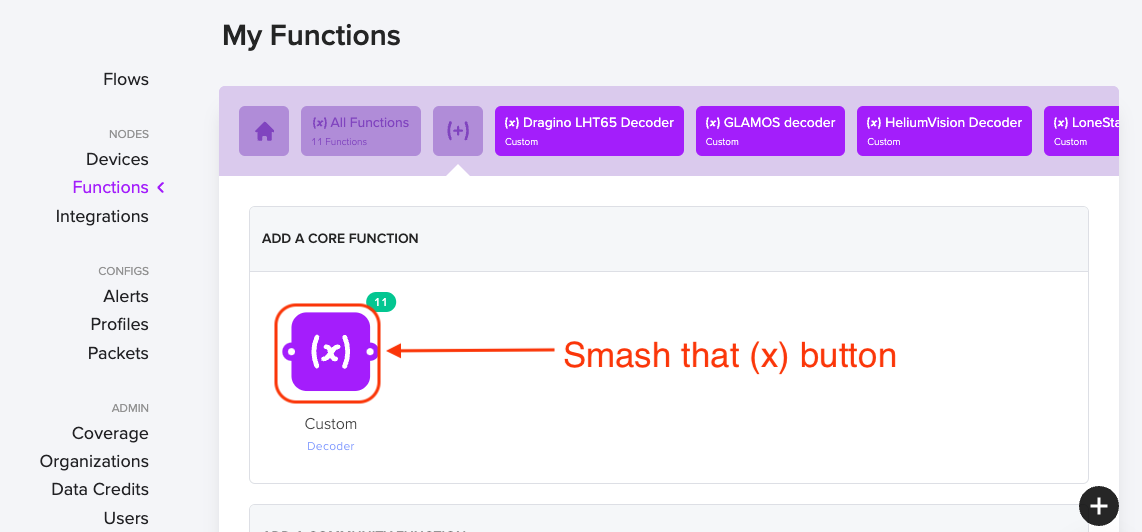
Ok, we're going custom here, 'cause you're worth it. Hit the Custom decoder button.
That'll take you to the function page, where you'll name your function (I called mine LSD 01 Door Sensor) and then you'll paste in the code from the github decoder.
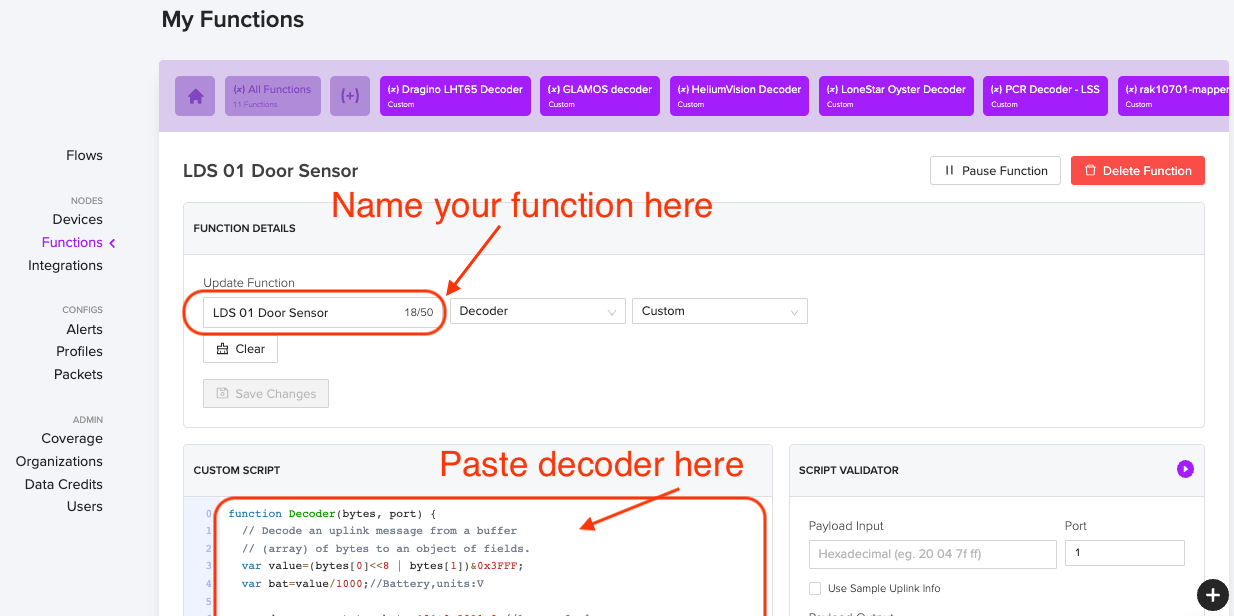
Remember, this isn't the Device you're naming, it's the Function. Once you have this Function decoder in Console, you can add a ton of devices and have all of them use the same Decoder Function. Cool, huh?

Now, if you just wanted to know if the door is open or closed whenever you looked at a dashboard, you could do one more step (add an integration to Datacake) and you'd be done. The flow would look like this in Console:
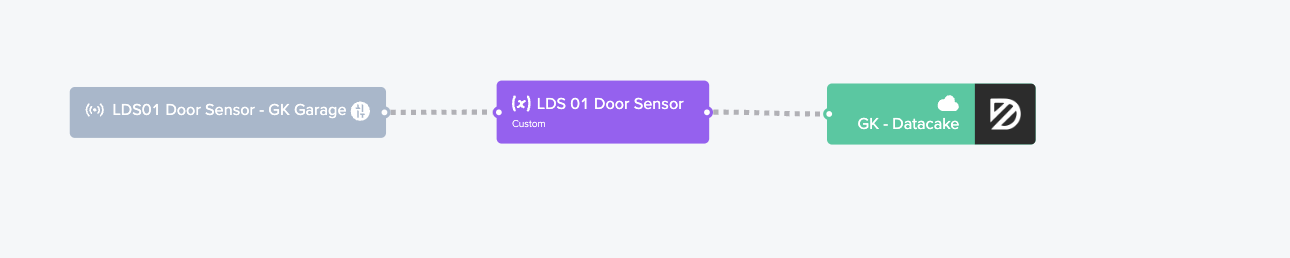
However, I don't think that's ultra useful. I mean, you'd have to open up a Datacake dashboard just to see if the door's open. That ain't automagic, that's a PITA. Onward!

Set Up Home Assistant On A Raspberry Pi

Let's fire up that Raspberry Pi you bought! I put mine in a very snazzy FLIRC case, but you don't have to.
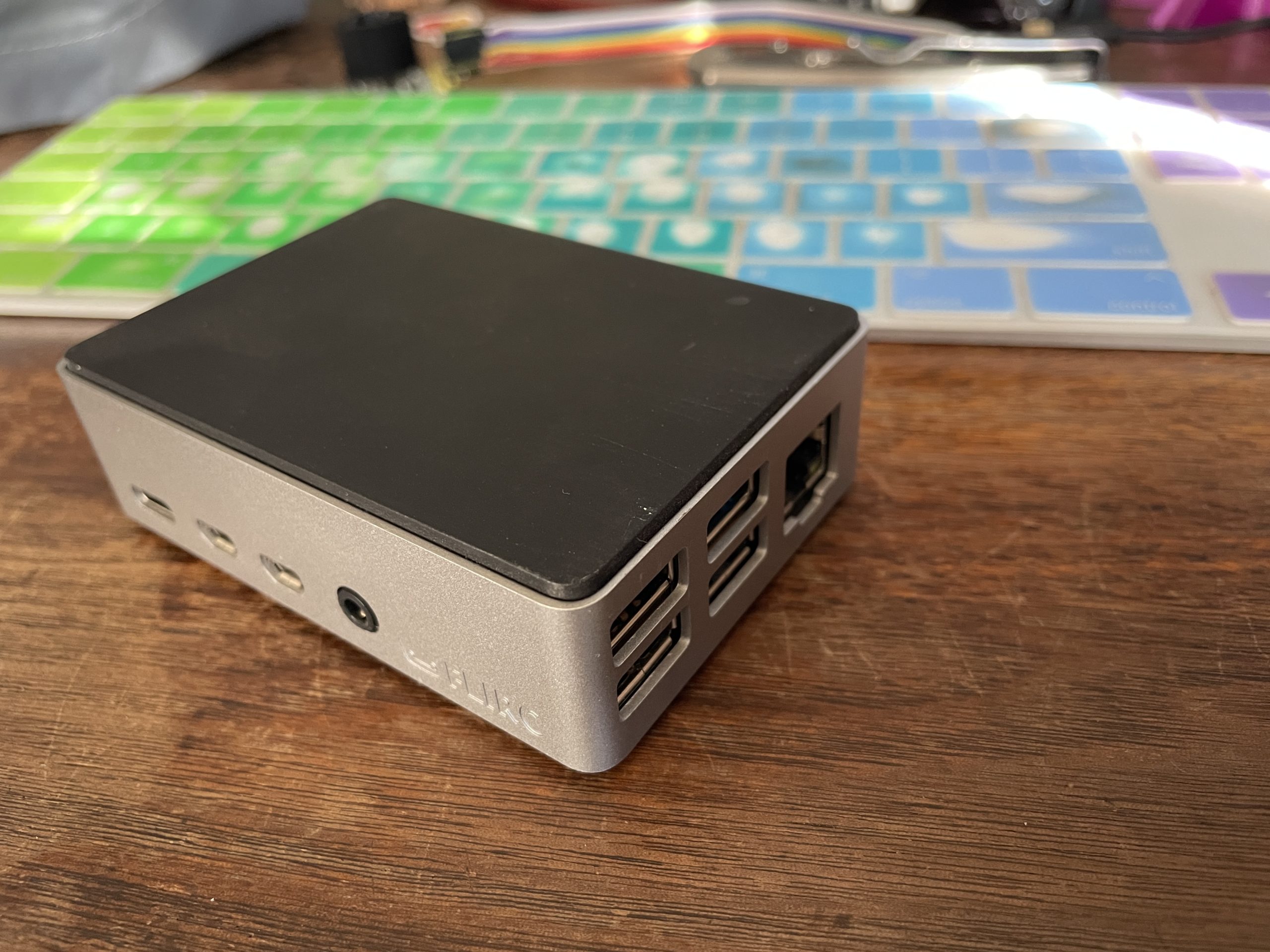
Now, despite my love for explaining things, the internetz has done a far better job of Pi tutorials than I have, so I'll just leave ya with what the good folks over at Home Assistant (HA) have written as far as setting up HA on your Pi. Come back when you're done!

It should look something like this when you've finished. I mean, it might not be sunny and 57°F, but hey, that's the bitter depths of winter here in San Diego.
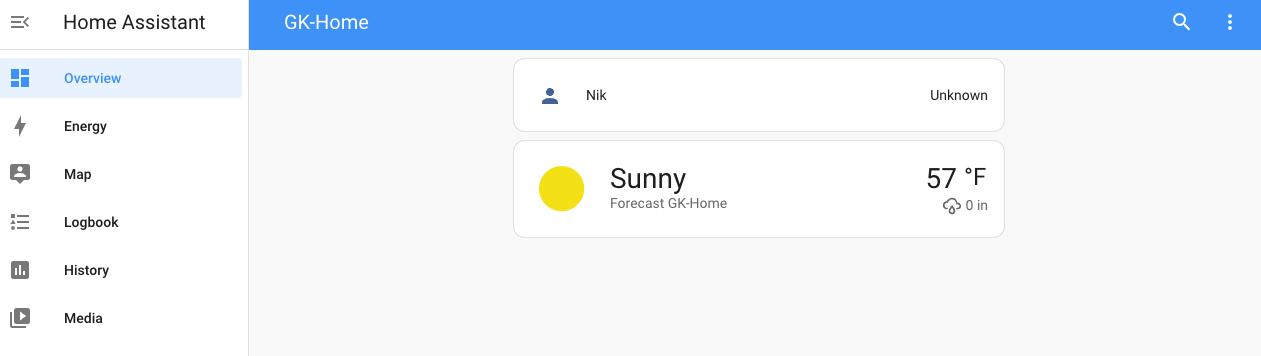
Great! For now, we'll leave Home Assistant and make sure we've got a reliable place for our MQTT broker (coming up next) to check in with Home Assistant.

Set Up A Publicly Accessible IP Address

Step 1 of the MQTT flow is to set up an IP address that Helium Console will connect to the broker on. The Helium Console MQTT Integration will need to connect to this broker at a publicly accessible ip address and port. Unless you have a fixed ip address (you probably don’t), you should set it up so that you can refer to this address with a name that does not change.

I used the free service provided by https://www.noip.com/ (check out that link for how to do it all, and heads up...port forwarding is a little tricky for first timers!)

With noip.com, I can get to my home network using an address like “gksupernet.hopto.org”. That'll send it to my current IP address as well as whatever my public IP address changes to next month when my internet service provider rolls it.

Now that we've set it up so you've got a reliable URL to send to (gksupernet.hopto.org, or whatever you set up on noip.com), let's jump back into Home Assistant.

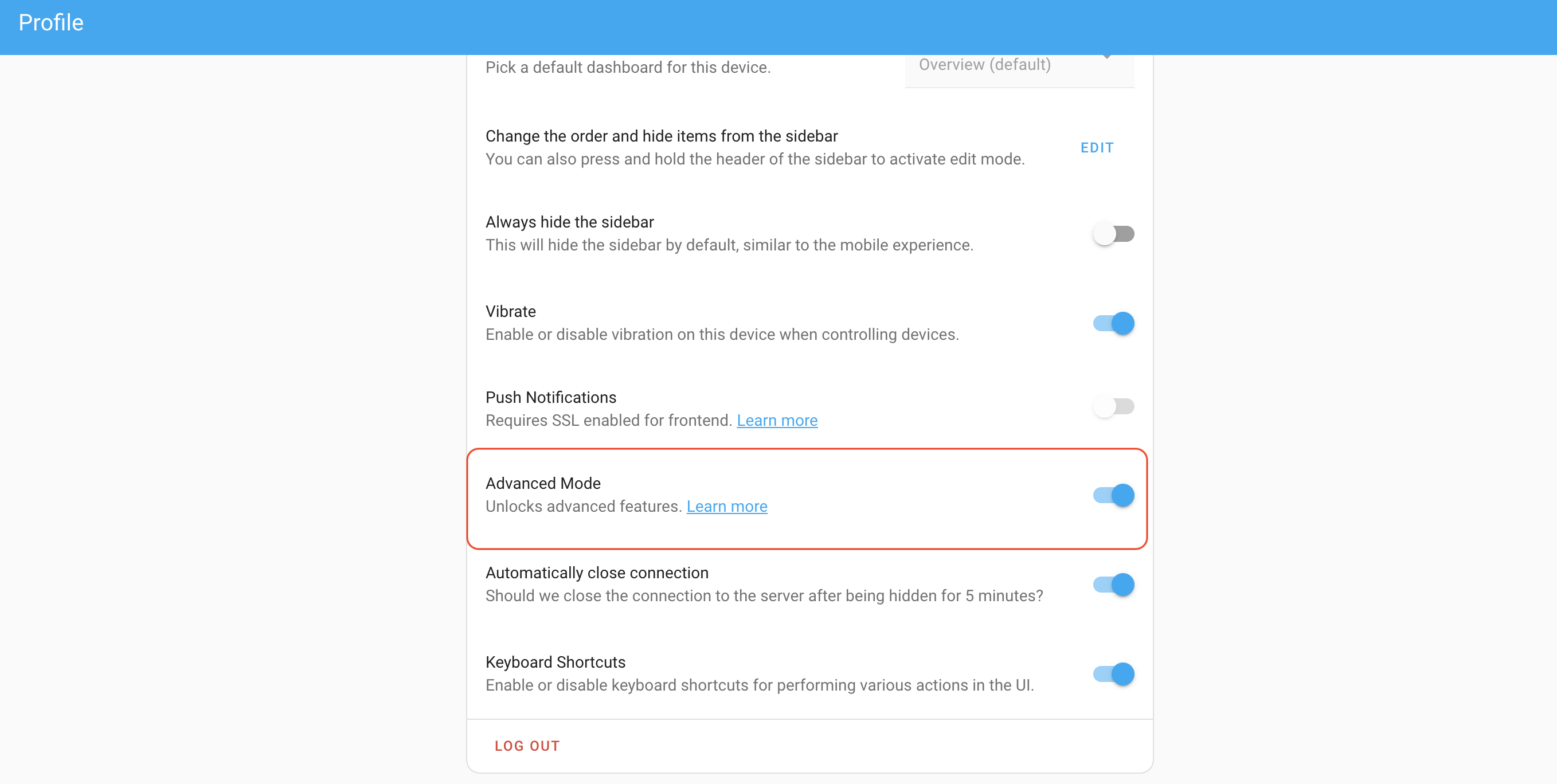
First, let's set your HA profile to Advanced mode. Go to your Profile (down in the bottom left menu, it'll be your name), then scroll down until you see Advanced Mode and turn it on.
Add the Mosquitto Broker to Home Assistant

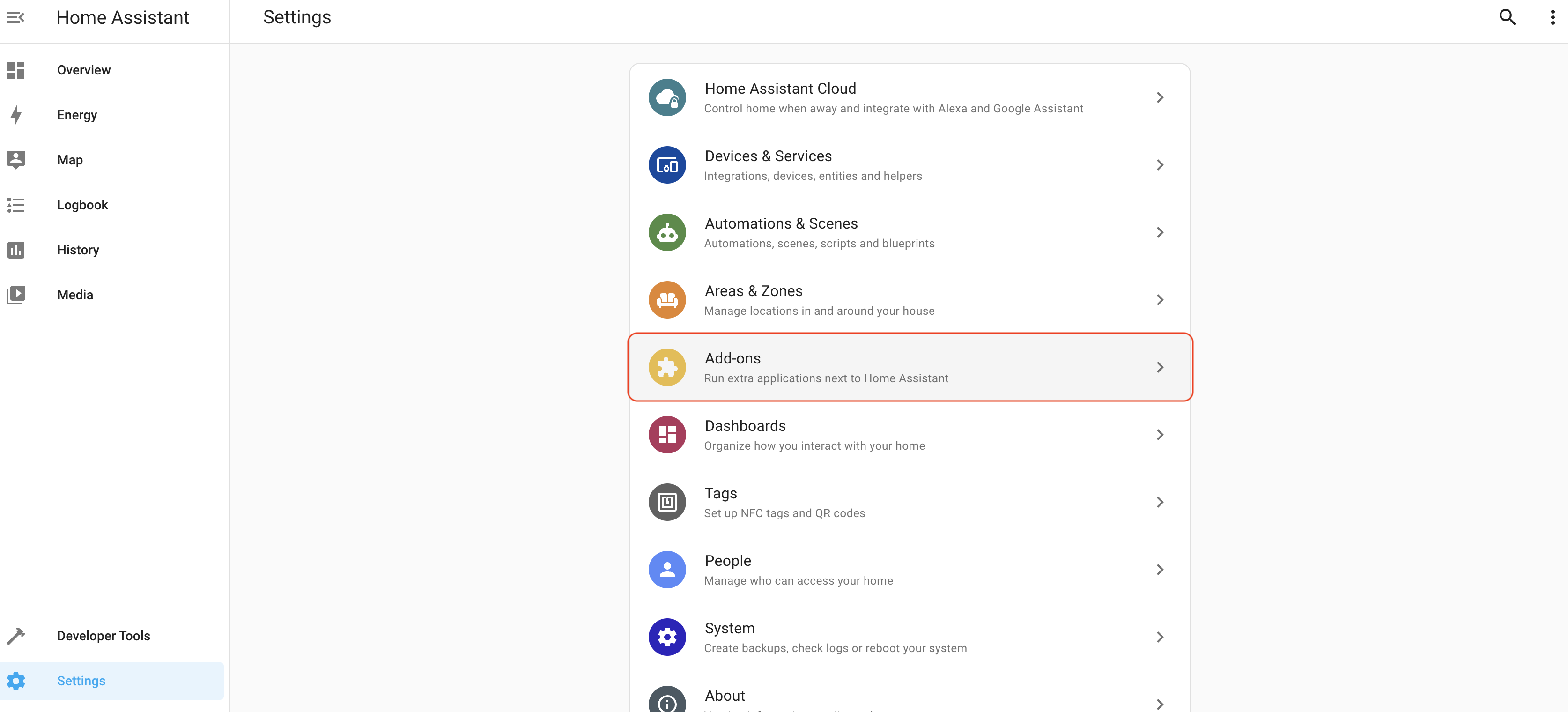
Next, we'll add the MQTT broker add-on. This is basically a translator and message forwarder for IoT devices. You can dive in here if you want, but for now, thinking of it as a translator/forwarder is probably fine. Instructions on how to add the "Mosquitto Broker" are here if you want 'em direct from the horse's mouth. I'll do the paint-by-numbers next just in case ya need it.

Start in your Home Assistant "front end" (I have mine saved as a bookmark), and look for the Add On Store.
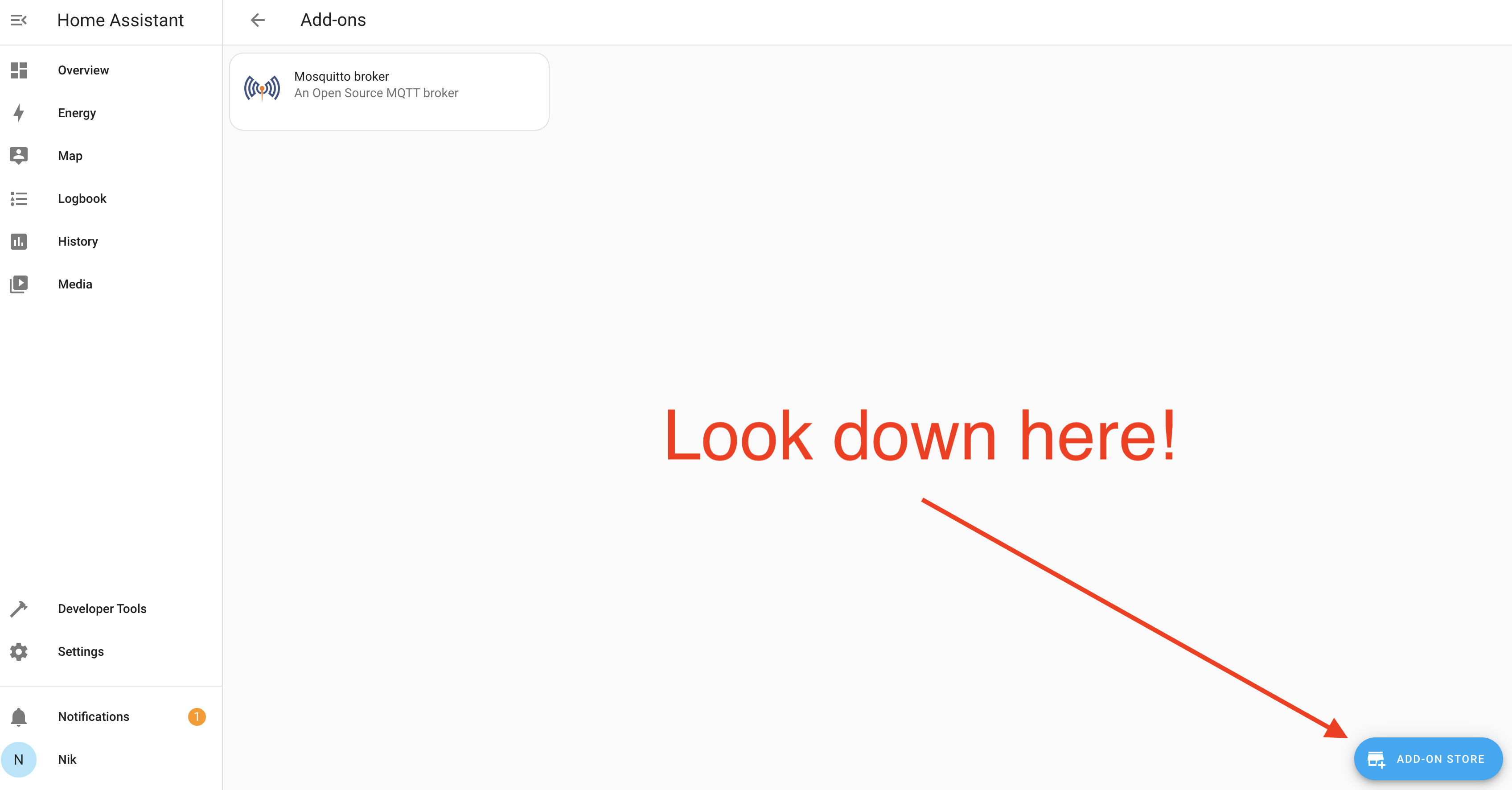
Once you go to Add Ons, look at the bottom right for the Add On store.
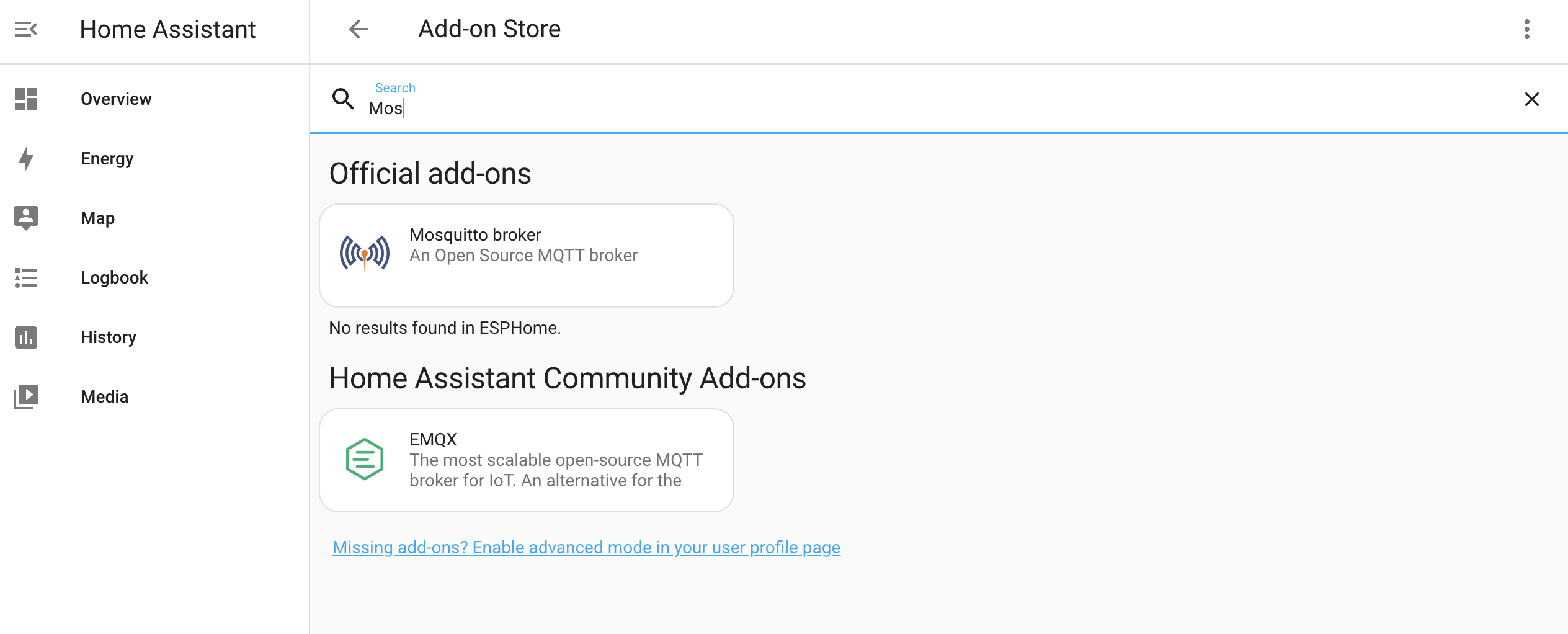
In the store, search "Mosquitto Broker" and install the Add On. That should look like this.
Once you've installed Mosquitto broker, next you'll need to set up a user. Go back to the main menu (NOT in the Mosquitto Add On) and look for Settings-->People

Then look for the User tab, and set up a user. I set up "mqtt-user" and used "asd;lfjas;ldkfjasd;lfjkas" for a password. No, that's not really my password. Sheesh.

Saweet!

AIGHT, let's set up a port forward!

For this specific guide, you only need to set up one port forward: 1883. That's the default port for an MQTT broker. Having that port open on your network and forwarding it to the local IP of the RPi running Home Assistant means the MQTT broker can receive messages from Helium Console and pass them on to Home Assistant. Conceptually, that looks like this:
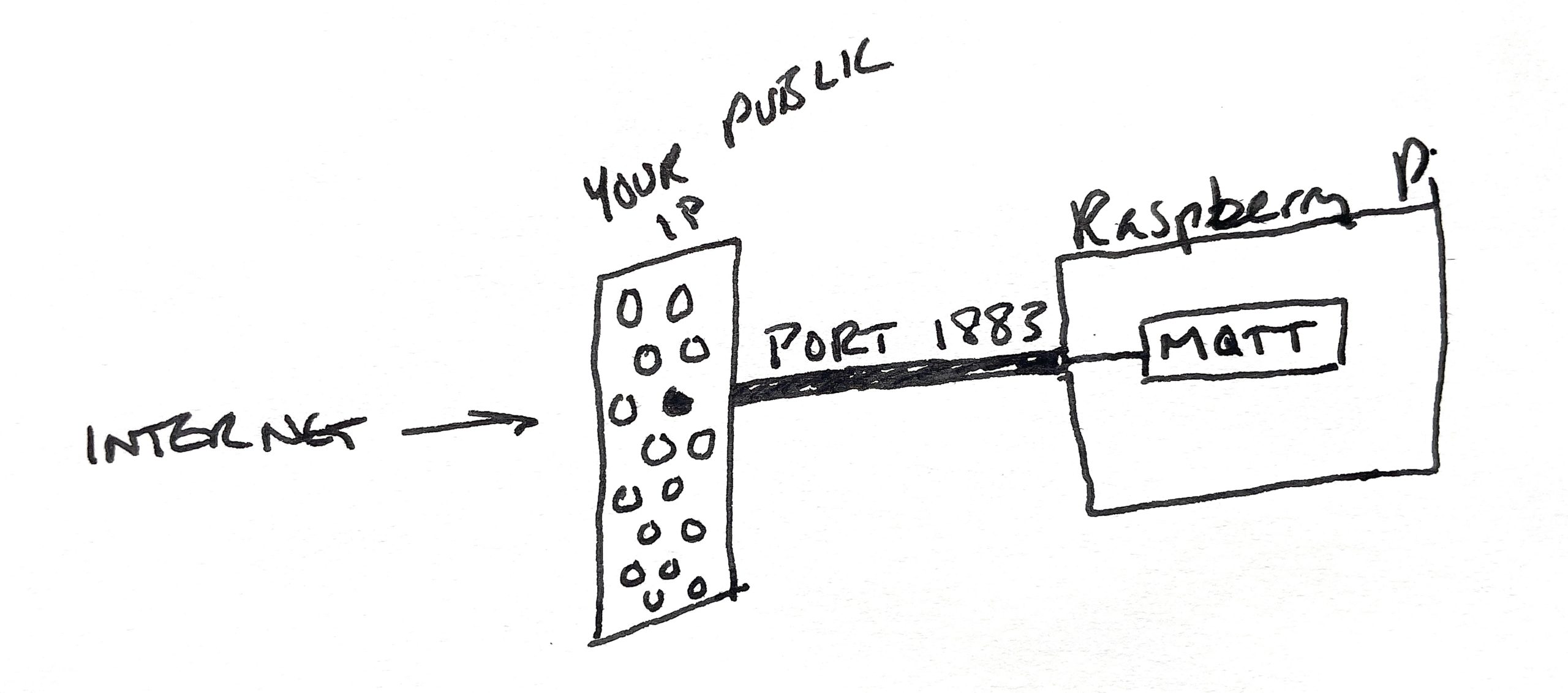
Port forwards poke a very specific hole in your network that is open to the outside world. If you think of your public IP as your home address that will take someone to your "front door on the internet", a port forward is like a tunnel from that door to a specific place in your house. That place could be a room, or a thing. In this case, the port forward is to one part (the MQTT broker) of one thing (the Raspberry Pi) on your network.

So, we're in kind of an odd spot here. "Port forwarding" is one of those things that is custom to your router. The absolute best way to figure it out is to Google [your router model] and "how to port forward", then follow the directions. It may be (has always been for me) a pain in the ass, but eventually I get it. You're welcome to jump into the GK Discord and ask questions, usually there are a few helpful folks in #general.

What you should have when you finish is a publicly accessible address of your broker. It'll look something like this:

mqtt://myusername:mysecurepw@gksupernet.hopto.org:1883

Substitute your user name, password, and the dynamic public IP you set up with noip.com above and everything *should* work.

Now, that URL prolly does nothing for you, but you need to check that your set up is correct! We'll do that next.

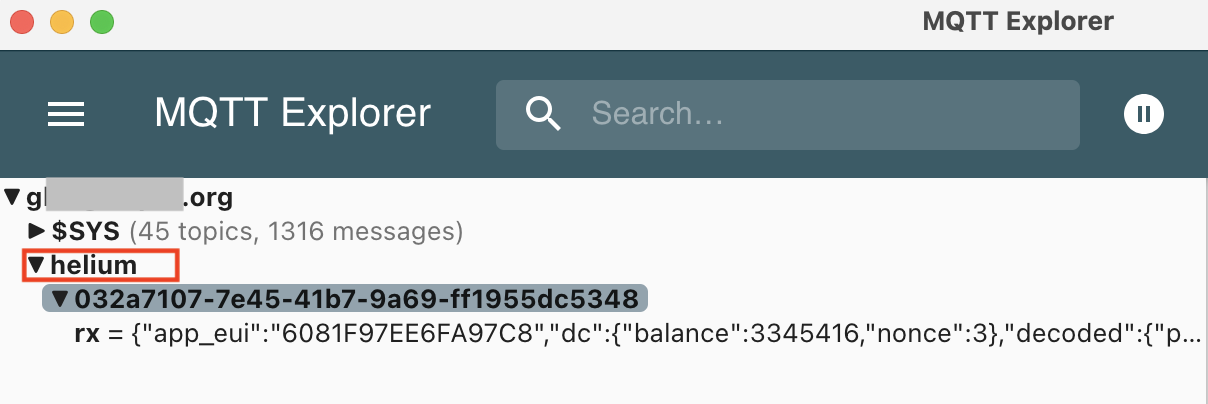
Download the MQTT Explorer app, fill in your creds, and test the connection. Once the connection tests out as good (it may take some fiddling, and you may need to restart Home Assistant), open and close the door a few times. You should see something like this in MQTT Explorer (as long as you're seeing "helium" under the $SYS, you're fine).
Now that we've got the port forward set up and tested so that Helium Console can send the data it gets and decodes from your sensor to the MQTT app running on Home Assistant, let's go back to Console and get 'er firing!

Setting up the MQTT Integration on Console

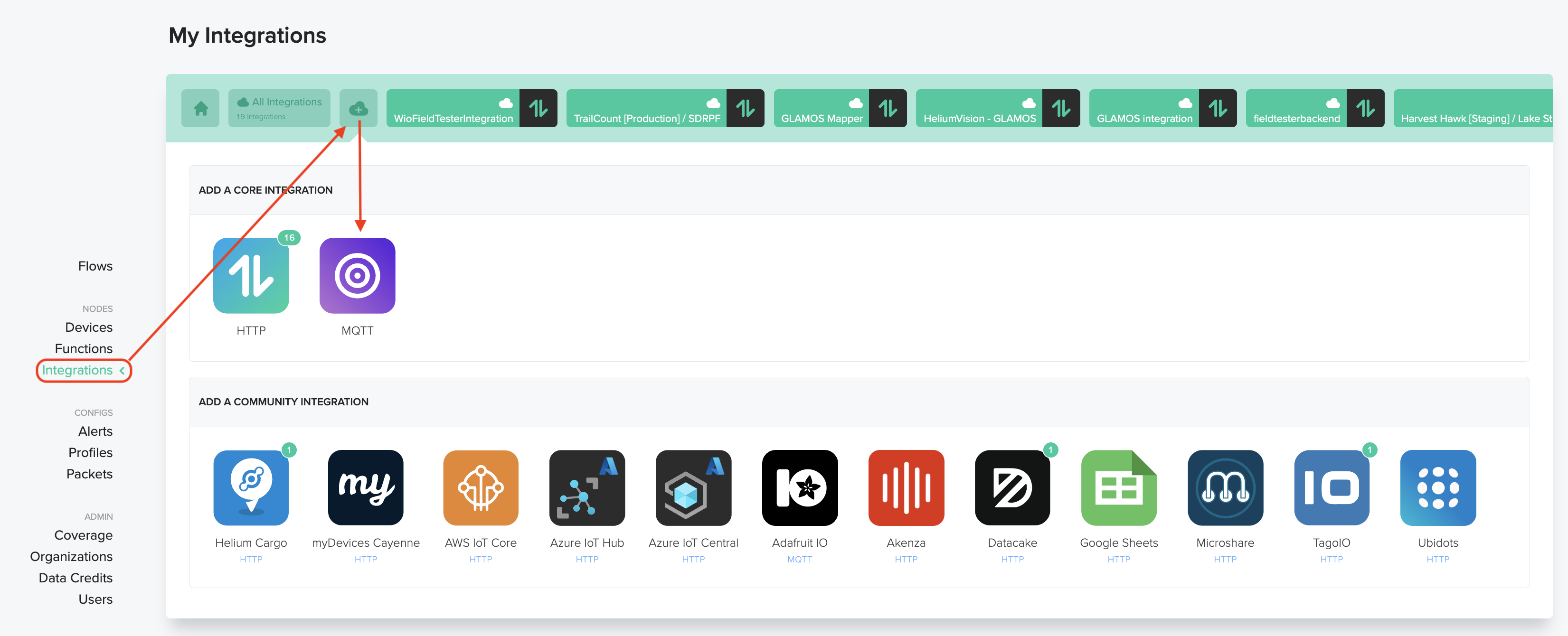
In Helium Console, look for "Integrations" in the left menu, then click the "+" button and select MQTT.
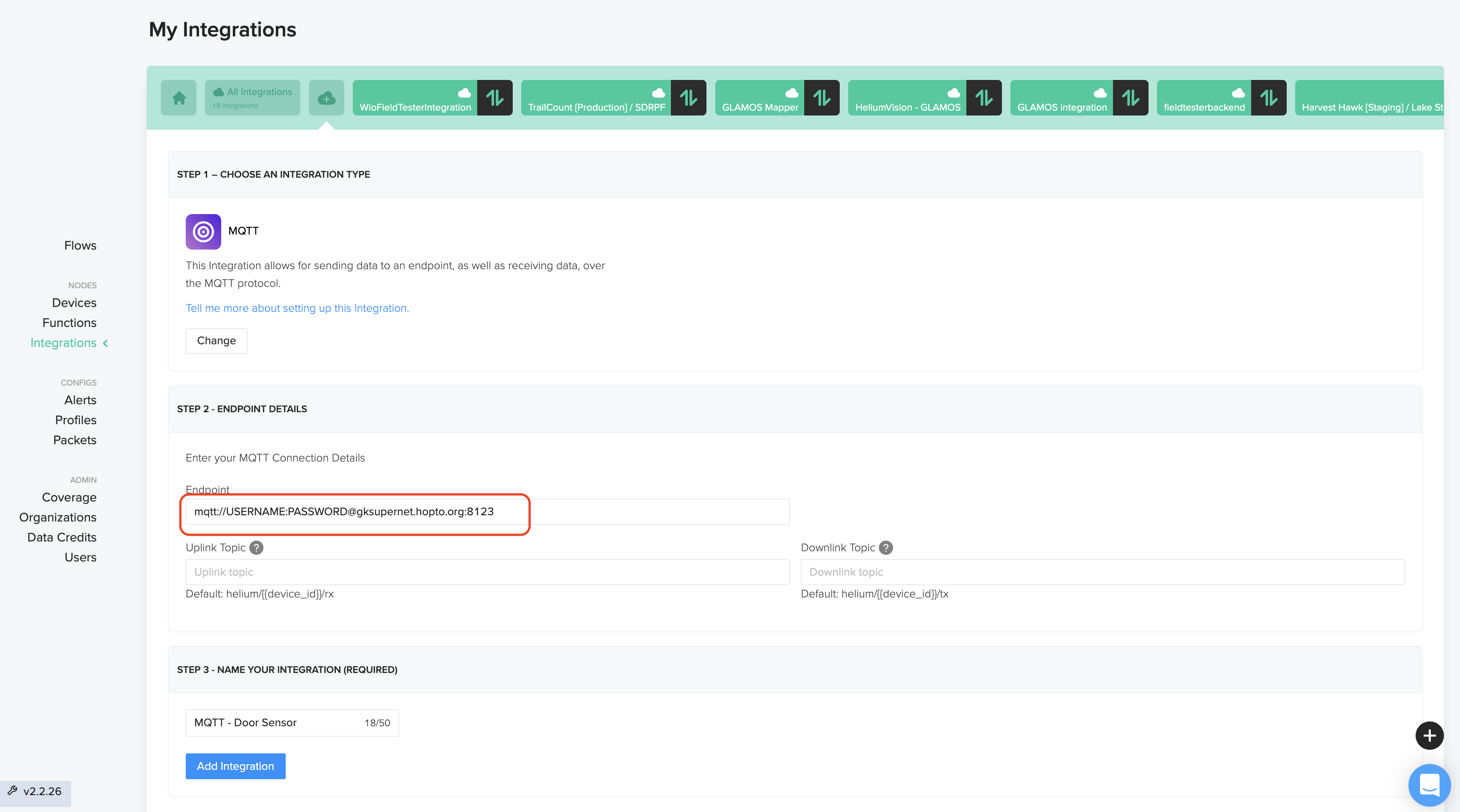
Then fill in the address you set up earlier, like this. It'll be something like this: mqtt://USERNAME:PASSWORD@gksupernet.hopto.org:8123
Once the Integration is set up we'll put together a Flow in Console. This is probably the only place in all of my ultra-limited coding experience where they added a drag 'n drop to make things easy. Start off with the Flows menu item, then look for Nodes and hit the "+" sign.
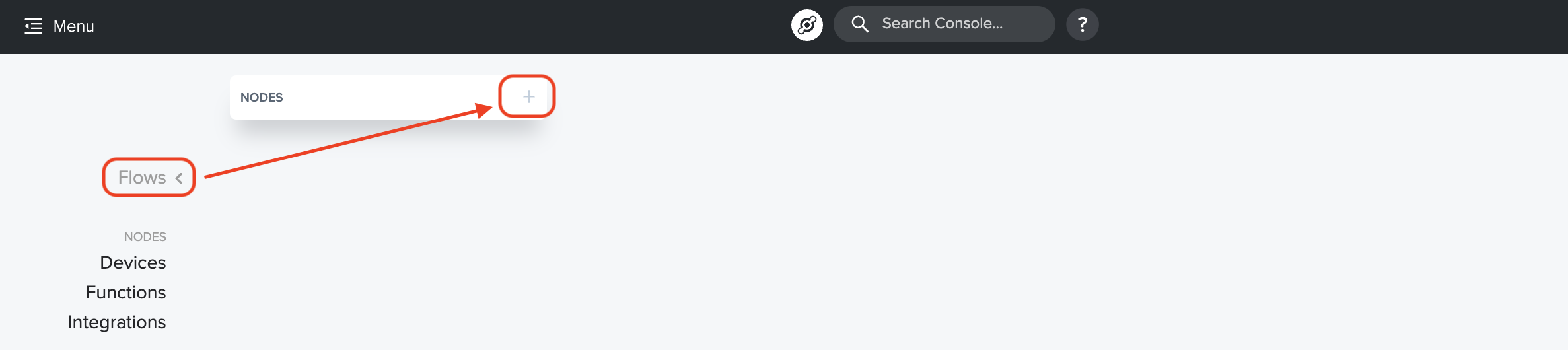
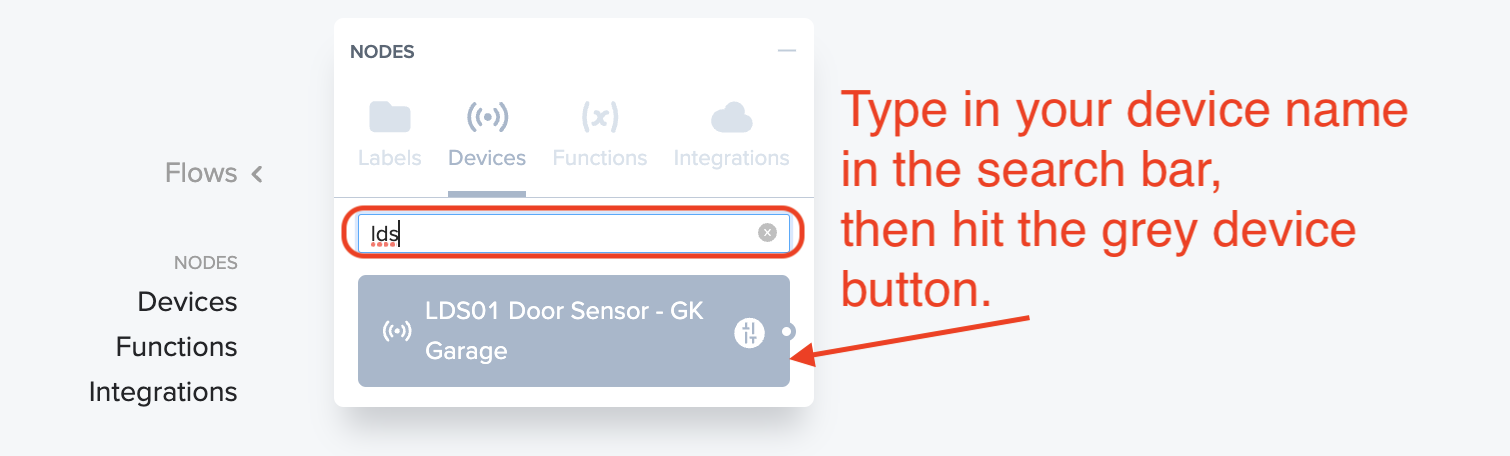
Now, the next 3 steps are straightforward. You're going to find your Device, your Function, and your Integration, and add them all to the Flow board. I'll show you how to add the Device, after that it's the same thing for Function & Integration. You got this!
When you're done adding those, your Flow board will look like this:
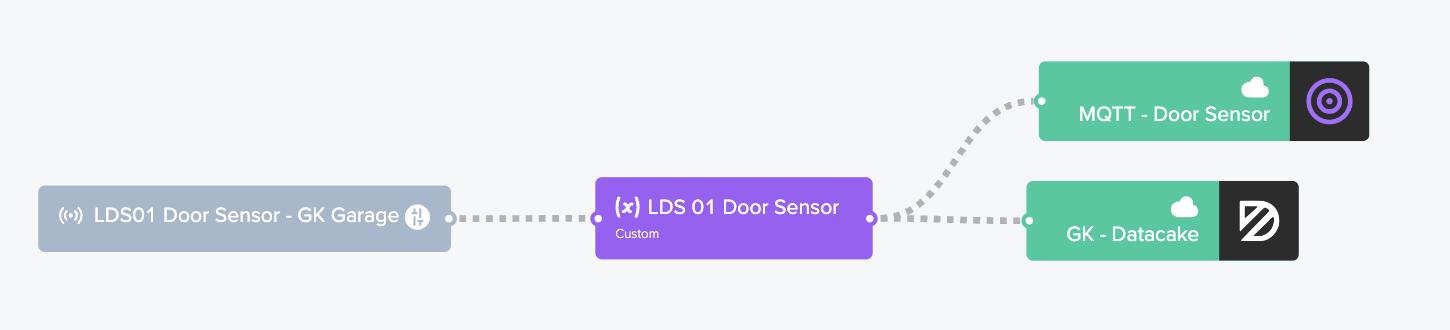
Yes, I still have the Datacake integration in there. Relax, you don't need to. All those dotted lines should be moving like ants crawling; that's how you know information is flowing from left to right. It's no guarantee that the thing on the right is receiving it correctly though. :)

Next up: Setting this up so when the MQTT gets the message it translates it to "open" or "close"

Creating a Door "Binary Sensor" in HA

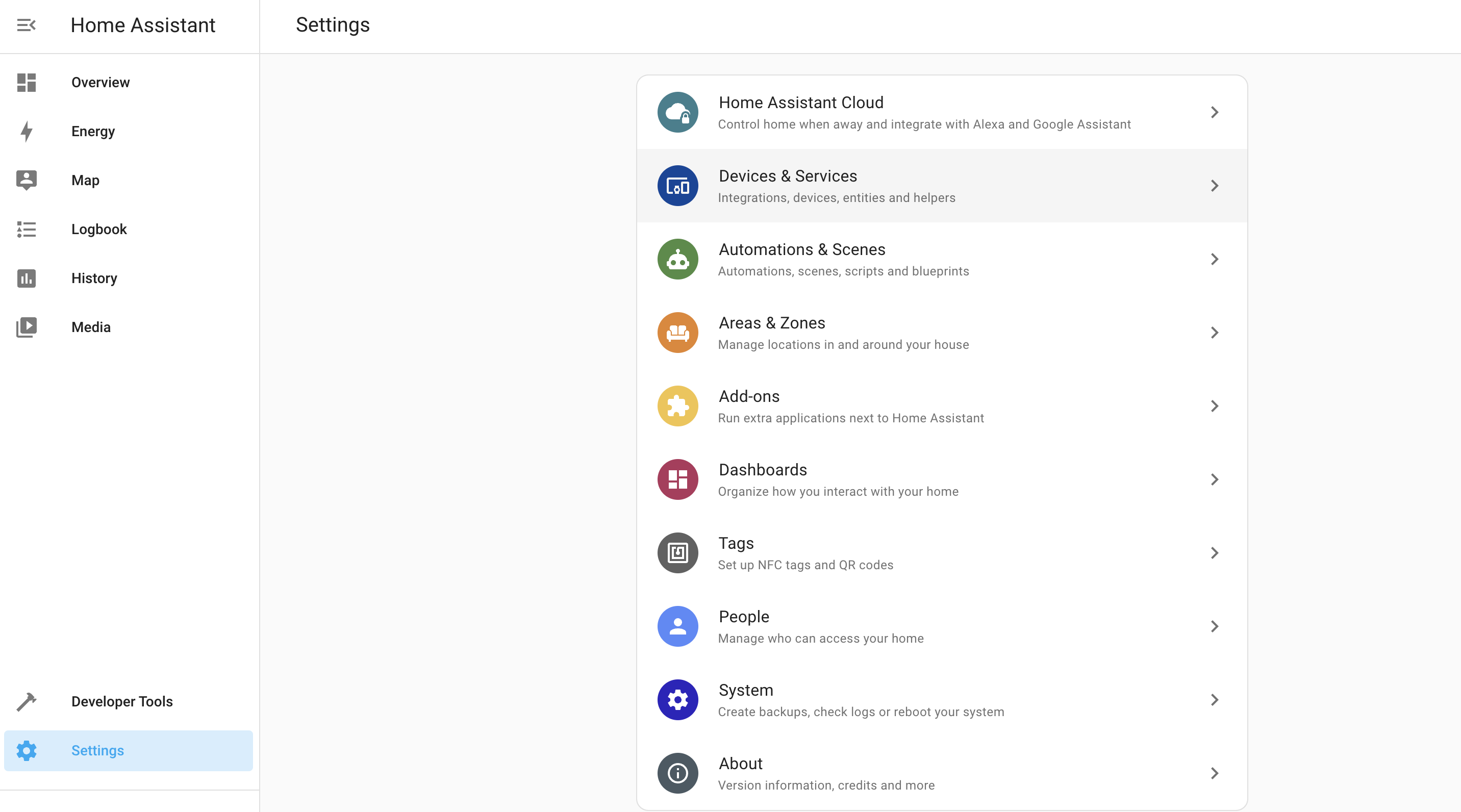
Kk, back in Home Assistant (HA, remember?) we're going to set up the sensor that's "binary" (one of two things, i.e. Open or Close). Let's go into Home Assistant --> Settings --> Devices & Services --> Integrations.
You should see the MQTT Integration already, just waiting to be configured. Hit that Configure button and let's dive in. It may ask you if you want to configure Home Assistant to connect to the MQTT broker. You do. ;)
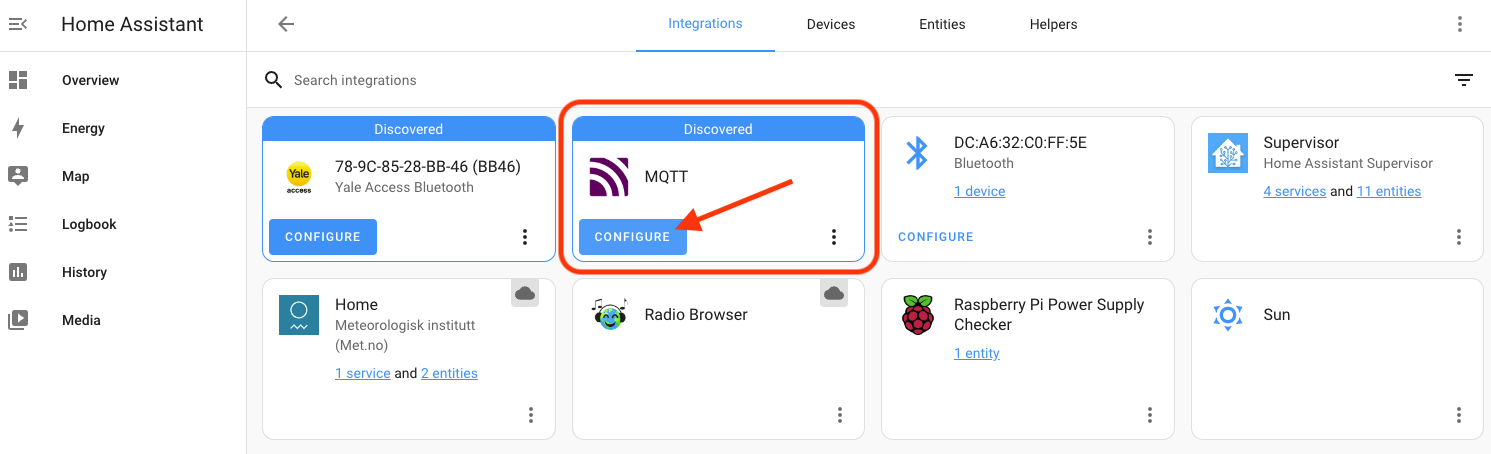
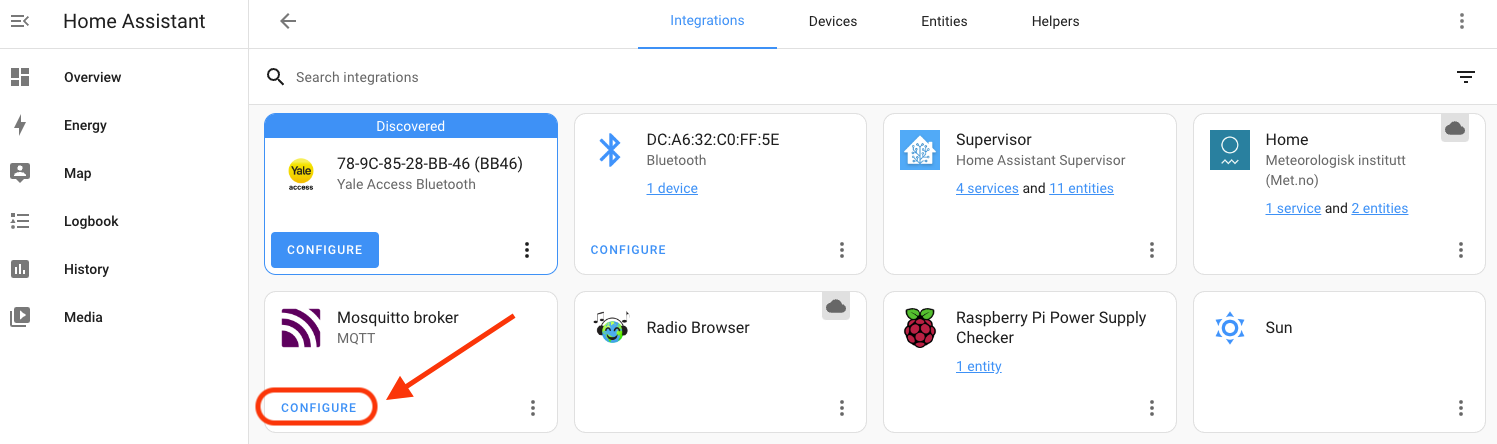
Once you've added it via the (confusingly labeled) blue Configure button, you'll have to actually configure it by hitting the blue Configure text.
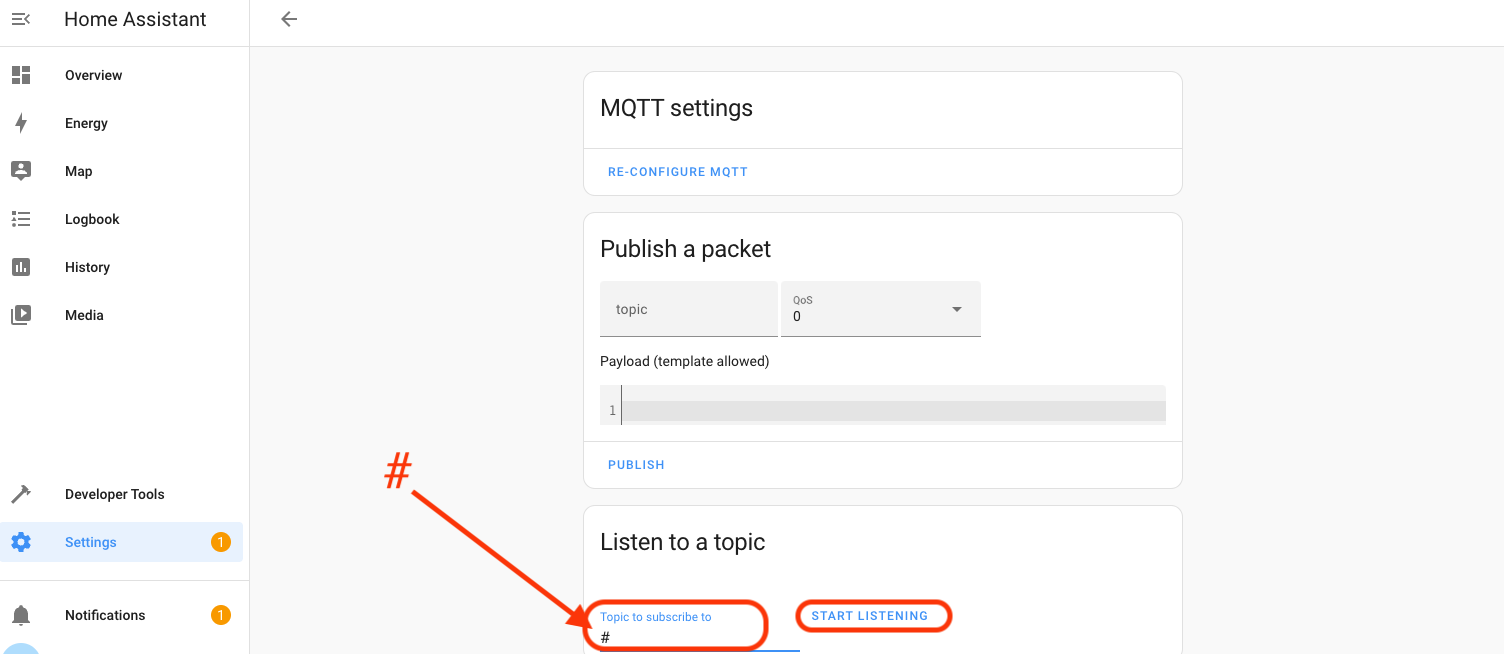
That will open up the MQTT settings window. At the bottom of that, look for "Listen to a topic", enter the pound sign (#), and hit "Start Listening".
Open and close the door sensor a couple of times and you should see messages start coming in beneath the Stop Listening line. Now, you'll have to copy the Message Topic Name, which is the text after "Message x received on", starting with "helium". In my case, it's
helium/032a7107-7e45-41b7-9a69-ff1955dc5348/rx
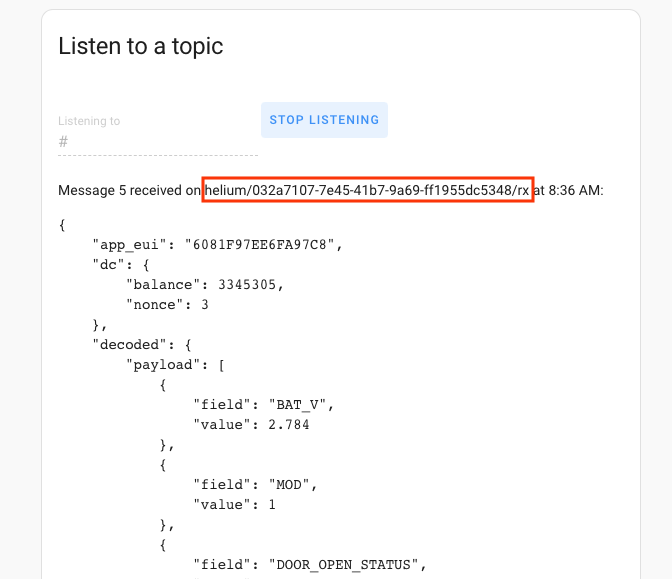
I pasted mine into a Sublime Text Editor file, but you can use Notepad or whatever you'd like.

Now we're going to set up a place in Home Assistant to paste that info.

Installing File Editor Addon

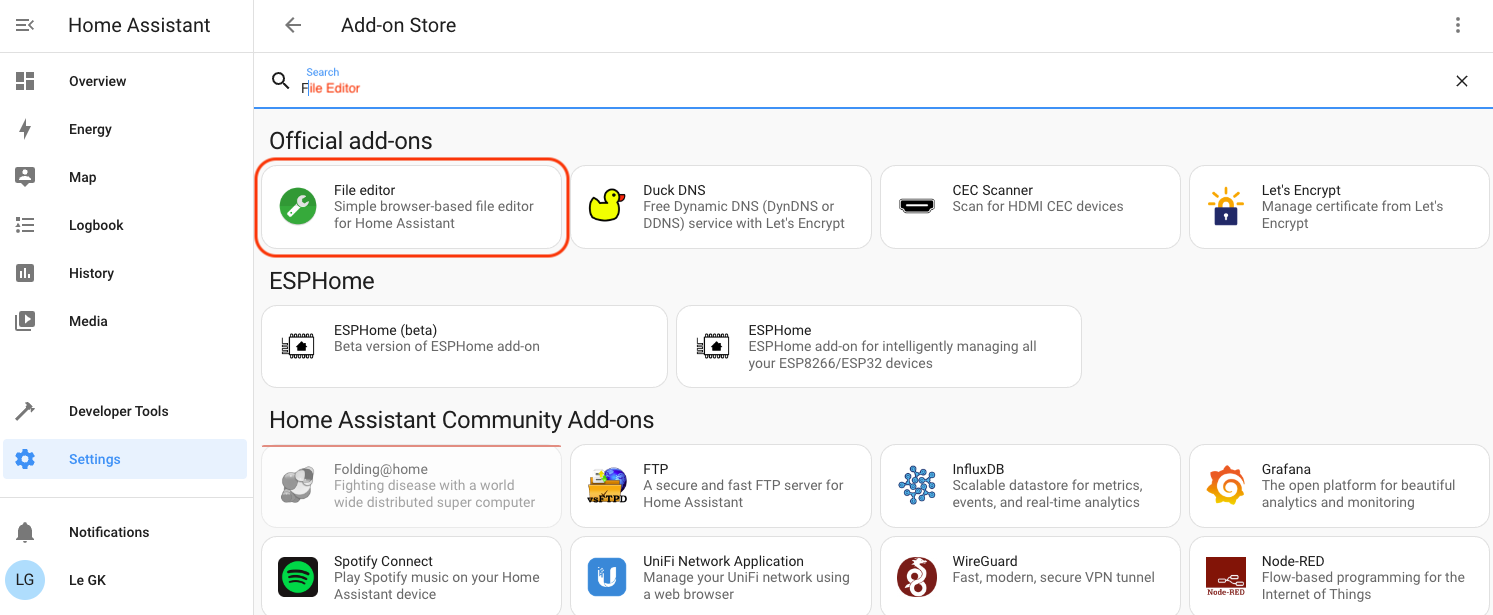
In Home Assistant, go to Settings-->Addons-->Addon Store-->File Editor.

Type the first few letters of File to make it easy to find, then hit that sucker.
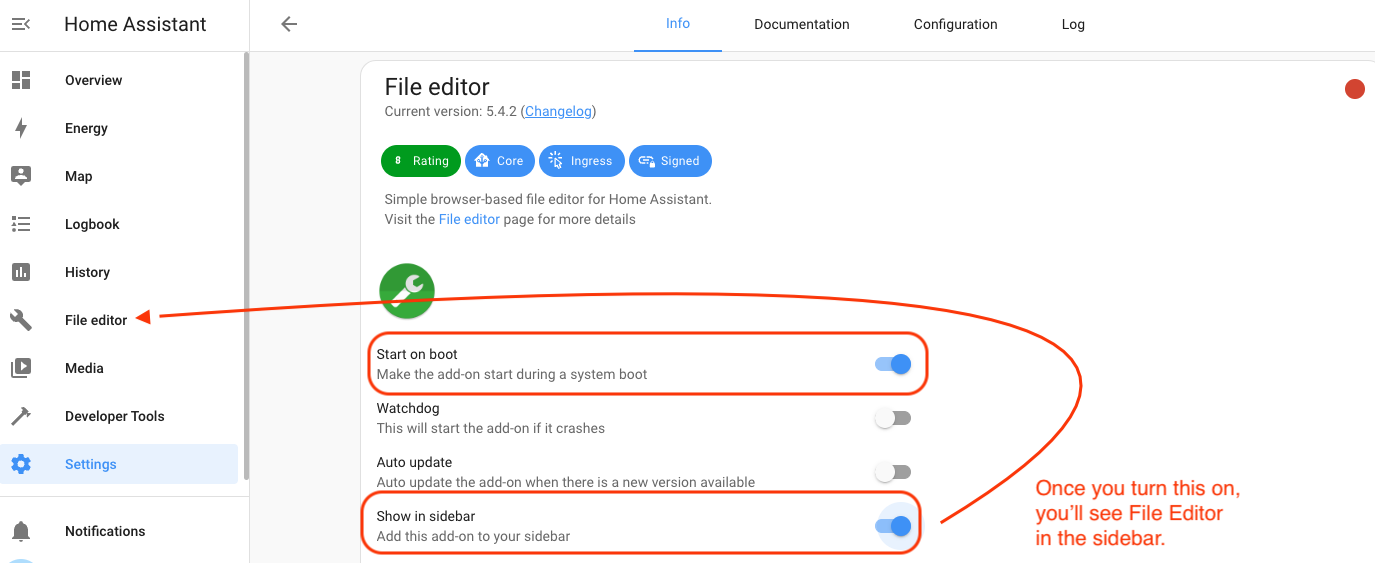
Once you've got it installed, turn on "Start on boot" and "Show in sidebar".
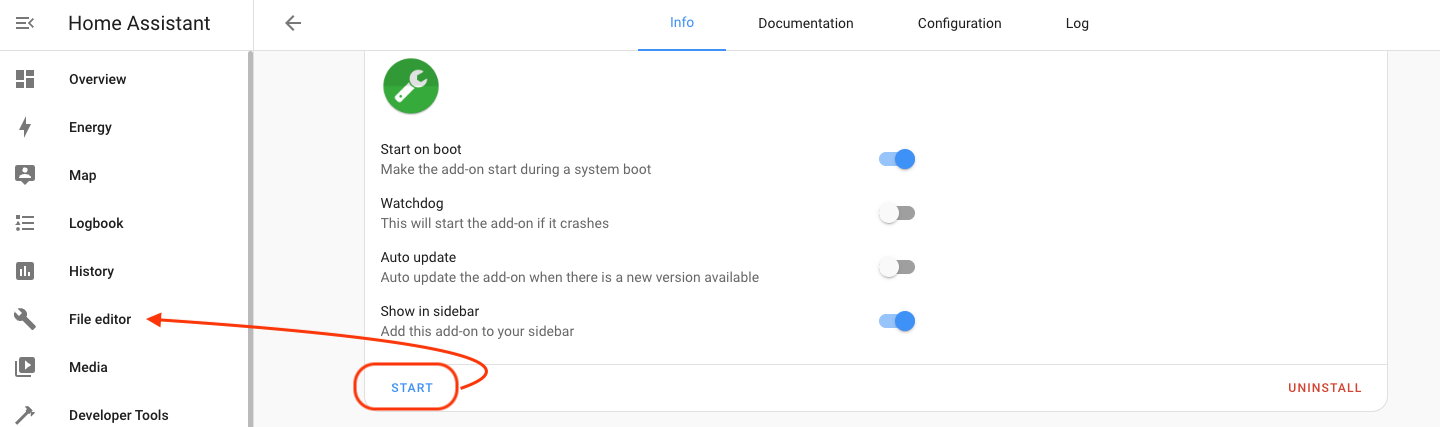
Once all that's done, hit the blue Start button, then go to File Editor in the sidebar. As my paragliding adventure buddy Robert says, "Now we're cooking with Crisco!" I think he means we're making progress.
Now that you're in File Editor you have to find the "configuration.yaml" file. Sounds complicated, right? It's not. You got this. Go up to the folder at the top left of the screen:
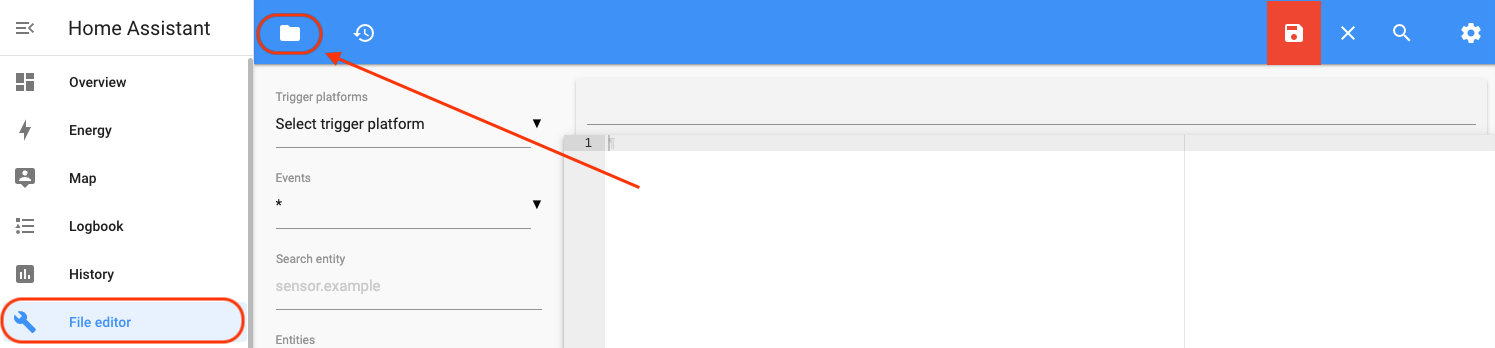
Then look for it in the menu that pops up.
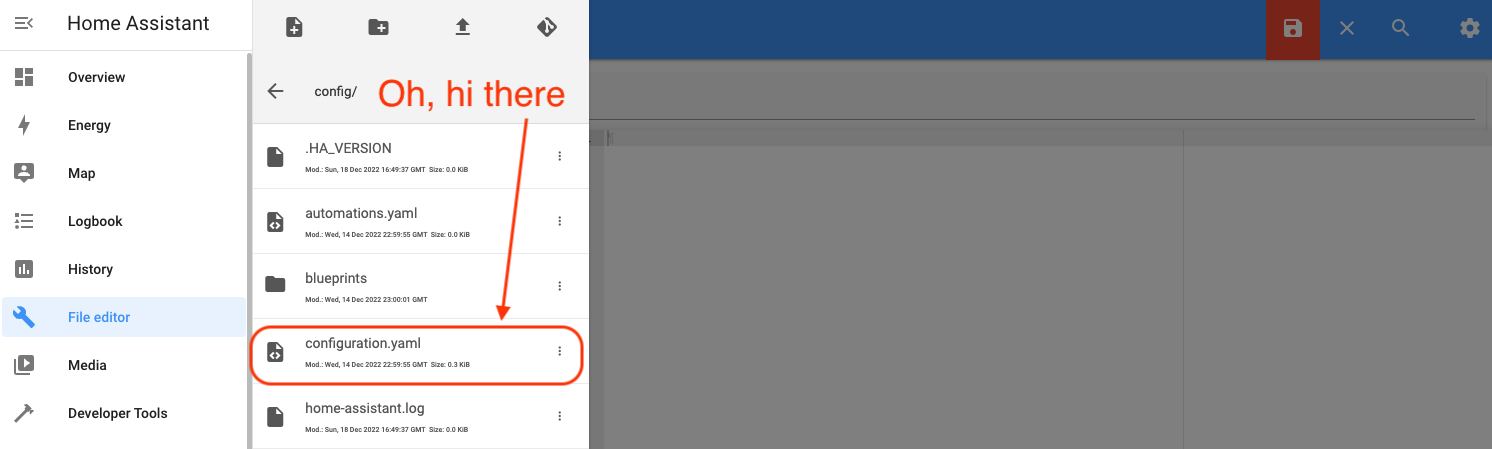
Once you've selected it and opened it up, we're going to add the following at the bottom of that file. Remember to change the last line to YOUR "state_topic" will be the one you copied earlier.

mqtt: binary_sensor: - name: "Gate Sensor" device_class: opening payload_on: "1" payload_off: "0" payload_not_available: "" value_template: "{{ value_json.decoded.payload.DOOR_OPEN_STATUS }}" state_topic: "helium/032a7107-7e45-41b7-9a69-ff1955dc5348/rx"
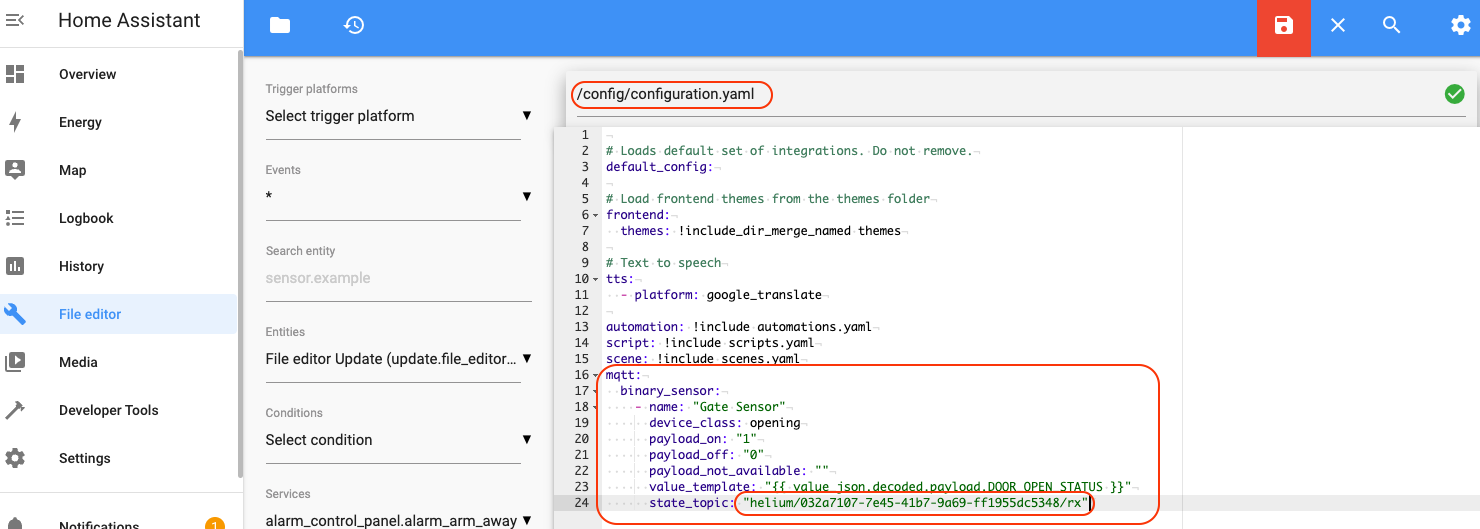
Hey, two quick things to note. First**, in the obscure world of yaml code, the rules are strict.** The exact indentation shown above is required. Each level is indented two spaces from the previous one. Second, the “value_template” in the yaml code specifies the hierarchy and names in the Helium sensor message (decoded ?payload?DOOR_OPEN_STATUS in this case). If you used a different door sensor or Helium decoder Function than we did, you will probably need to modify this text to match your sensor message.
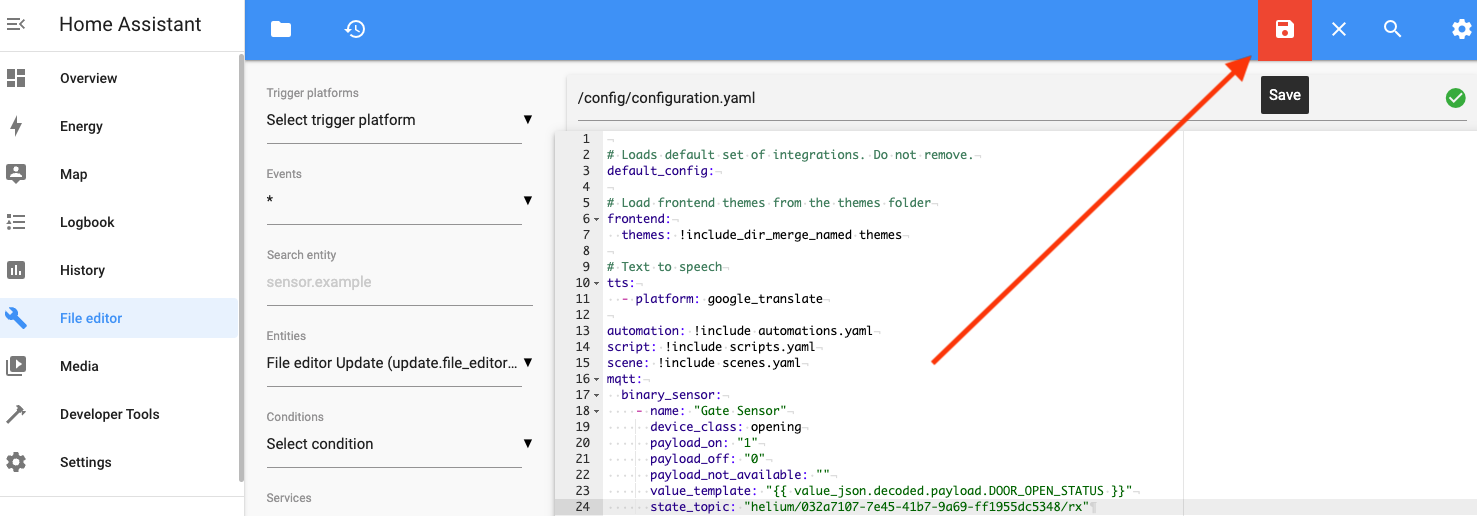
Once you've pasted in your fancy mqtt code from above, save the file with the red folder icon.
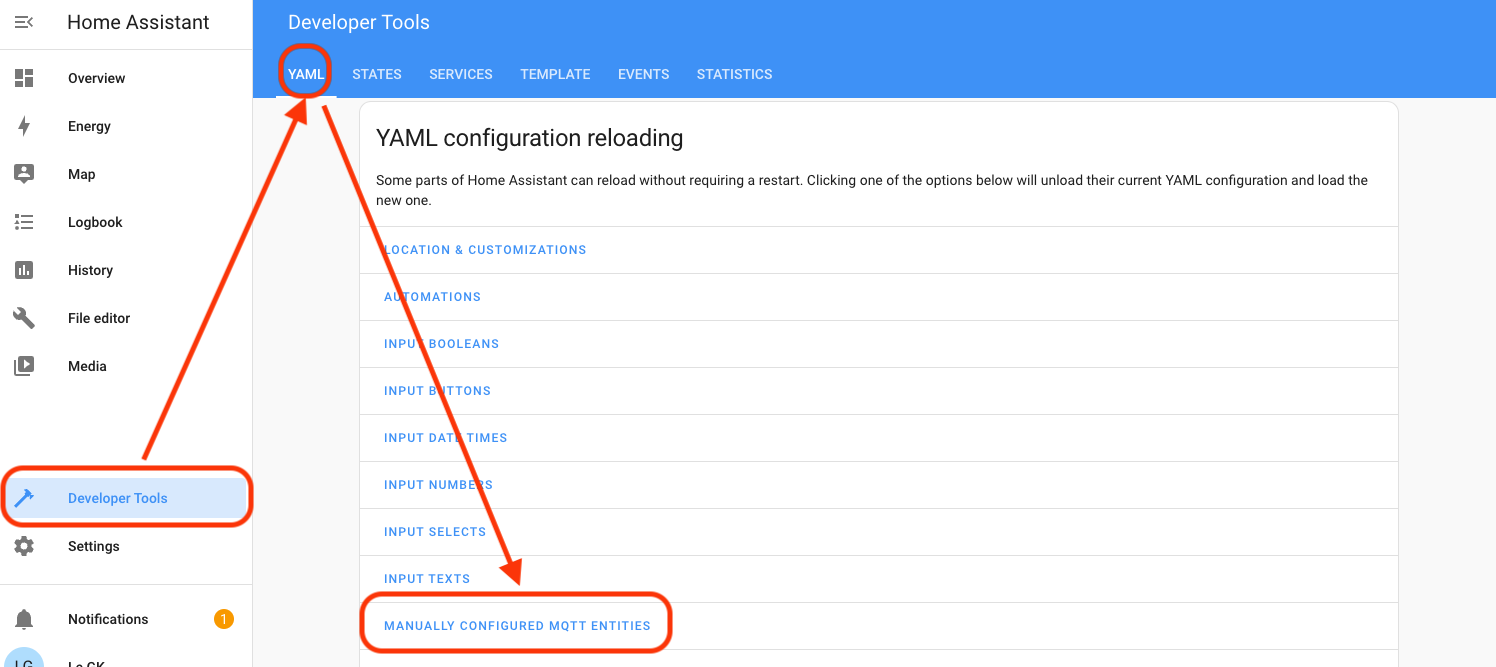
Now, reload the configuration by going to Developer Tools ? YAML configuration reloading ? MANUALLY CONFIGURED MQTT ENTITIES. Hit that, it'll turn green for a second, then back to normal.
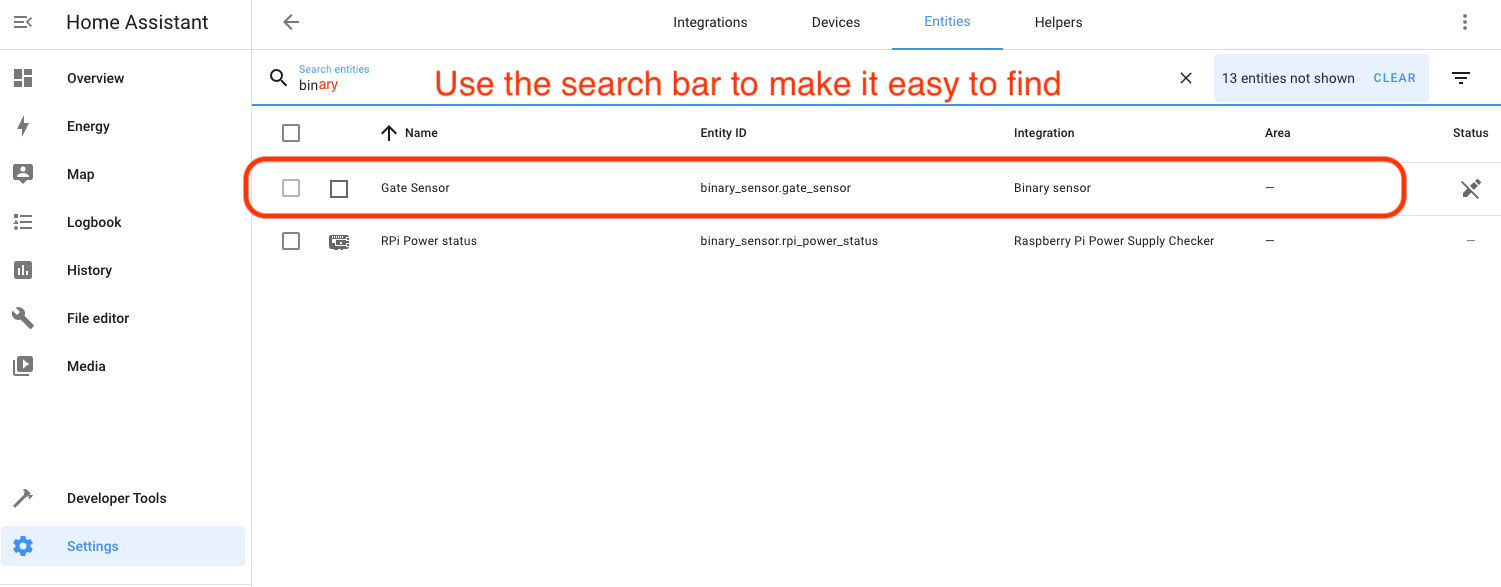
Check your work back in Settings-->Devices & Services-->Entities. You should find an entry like this.
Oh. My. G. We're coming into the home stretch here. The next (and pretty much last) thing we'll do is set up a smart switch on Home Assistant and switch it based on the door sensor state changes. I'm going to use a Kasa Smart Wifi switch.

Now, I'm going to skip pictures and hand-holding for the Kasa Switch setup; that should be pretty straightforward. Buy the switch, put the Kasa app on your phone, add the switch to your phone.

Setting Up The Smart Switch in Home Assistant

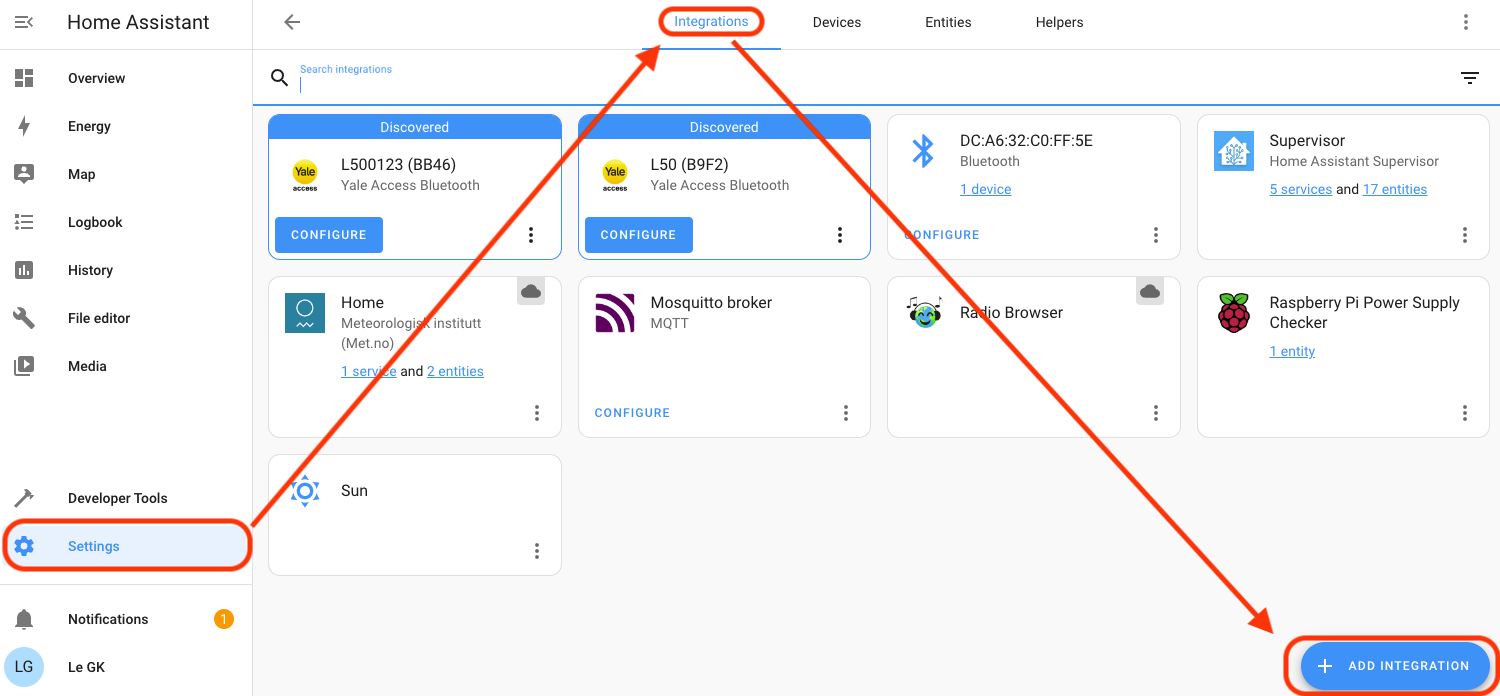
With the switch installed on your local WiFi network, let's head over to Home Assistant, where we'll add a Kasa Smart integration. Go to Settings-->Devices & Services-->Integrations-->Add Integration. I skipped the picture for Devices & Services. You got this.
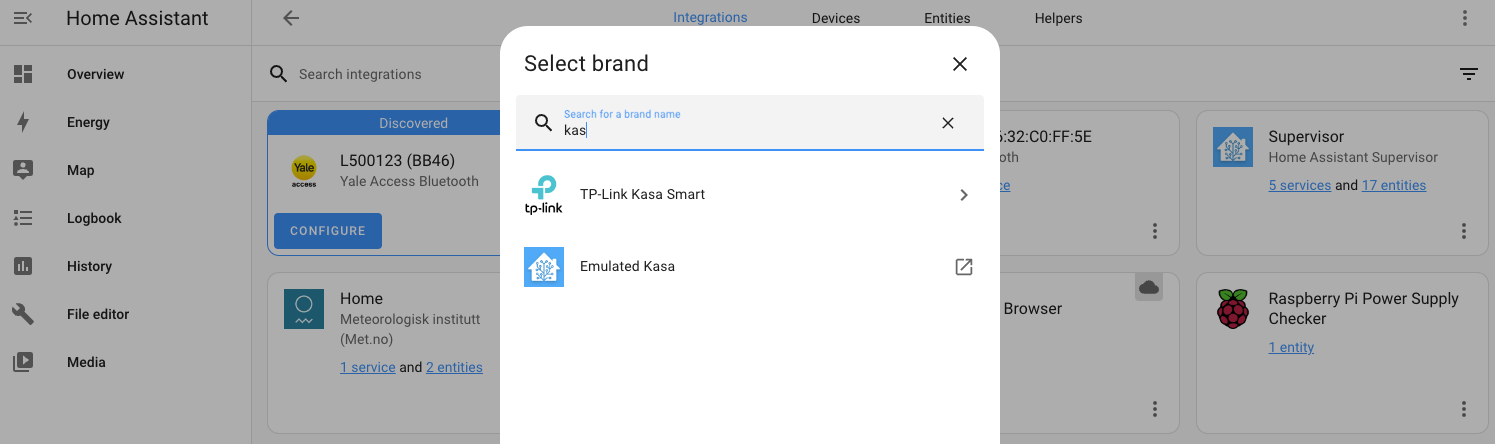
Use the Search field to narrow it down, then select TP-Link Kasa Smart. Leave the "host" field empty, it'll find your devices.
If you're running multiple WiFi networks in your home to separate out your personal devices (like phones, computers) from those scum-sucking IoT devices, you'll need to get a little geeky on your own with allowing Home Assistant to access your networks. I had to Google on this, but because it's a router/modem related issue, there's not a great way for my experience to translate to yours. GIYF here. Google Is Your Friend.

When you get it all right, you'll see the Kasa devices you have on your network. Heated mat for the win in the San Diego winter. For now, we're going with the one labeled GK HA Garage Switch Integration. Fun note: I renamed this to just be GK Garage Switch, as the addition of Integration at the end confused me when I was trouble shooting later.
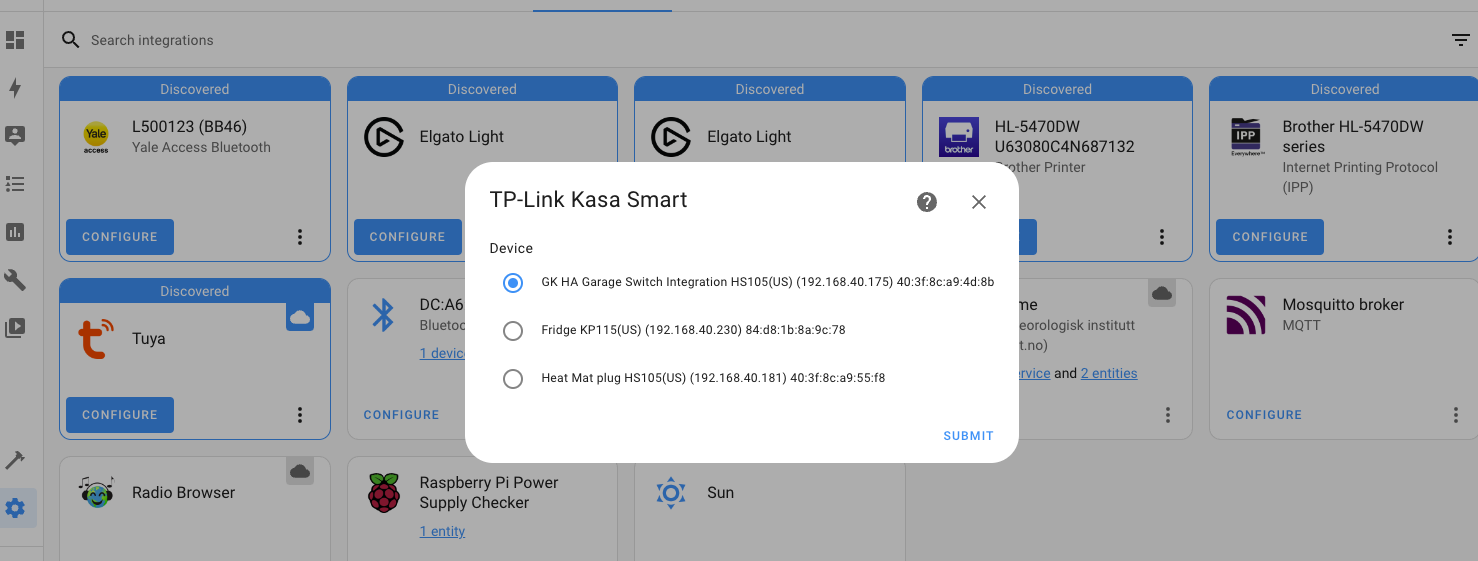
When you're done with adding it in, our final steps will be to add an Automation in HA that turns on the switch when the door sensor fires. Restart Home Automation to lock in your changes (HA Settings-->System-->Restart (top right) and prepare for the final push. We're close now!

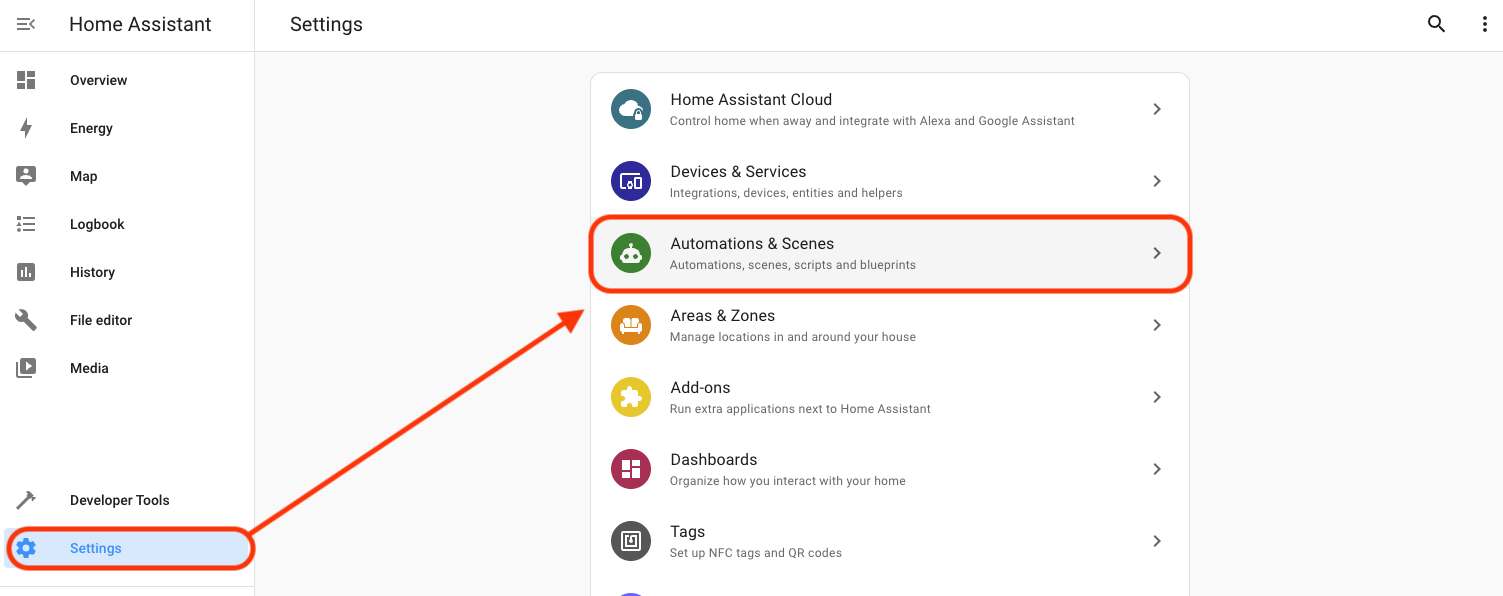
In Home Assistant, go to Settings-->Automation & Scenes.
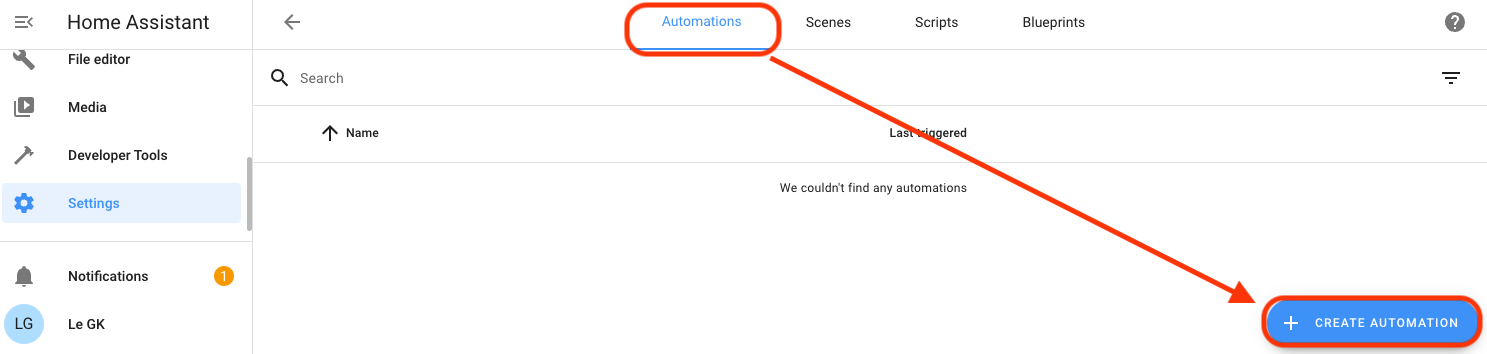
Then look in the bottom right for "Create Automation".
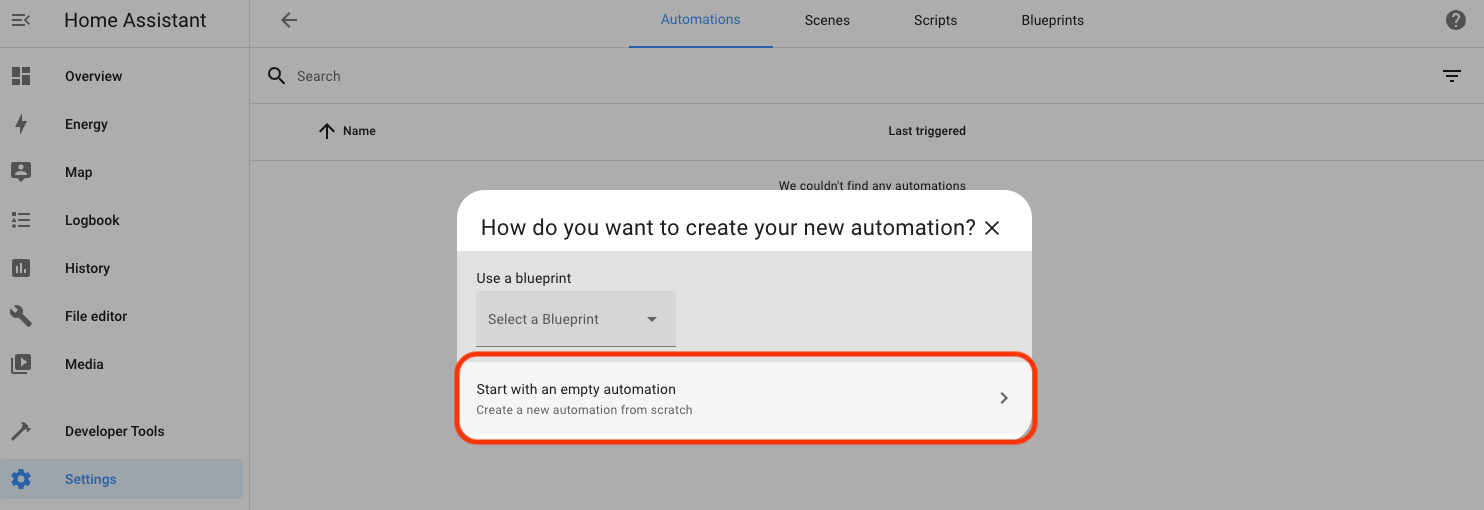
Start with an empty Automation (don't get suckered into the pre-filled ones yet!)
You'll see a window where the "flow" should make sense. We're going to add a Trigger, a Condition, and an Action.

Start by adding ("+") a Trigger, which will be a "State" change.
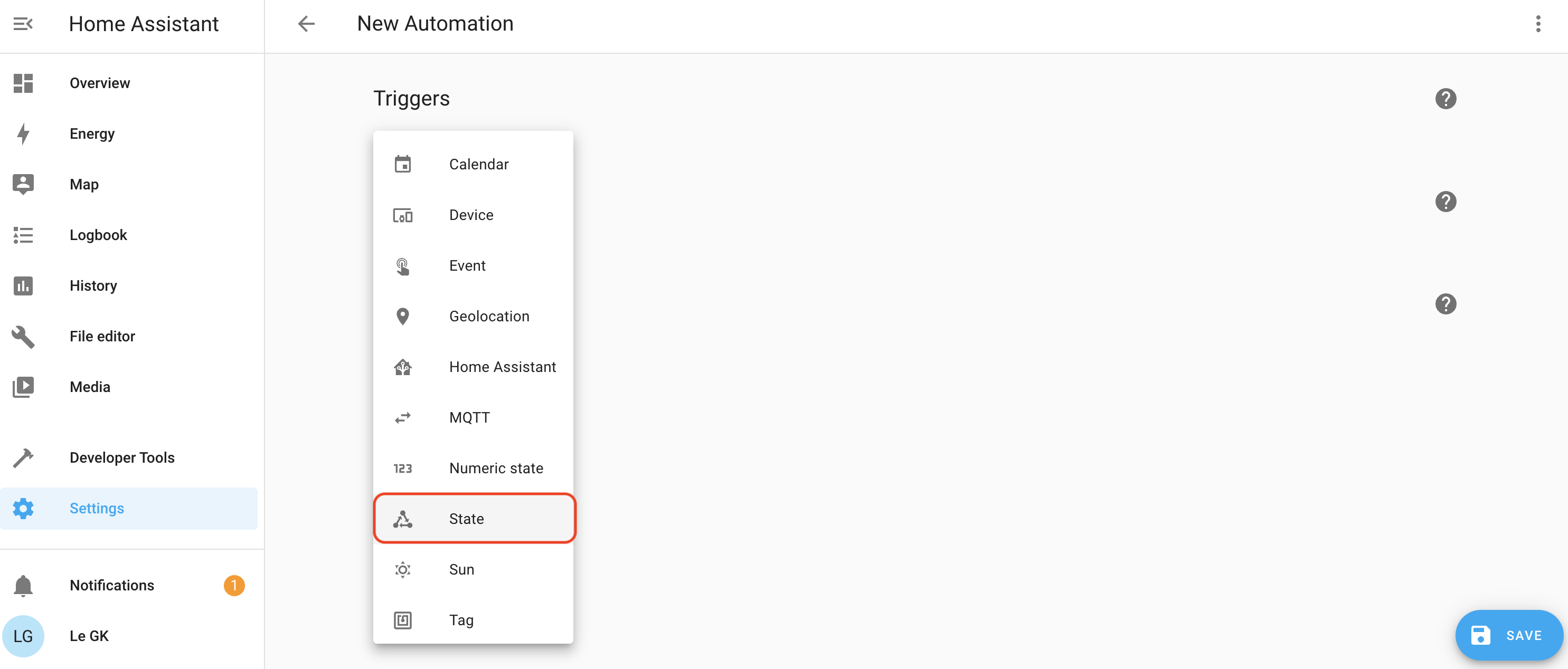
  • Trigger name: When Gate Sensor changes from off to on.
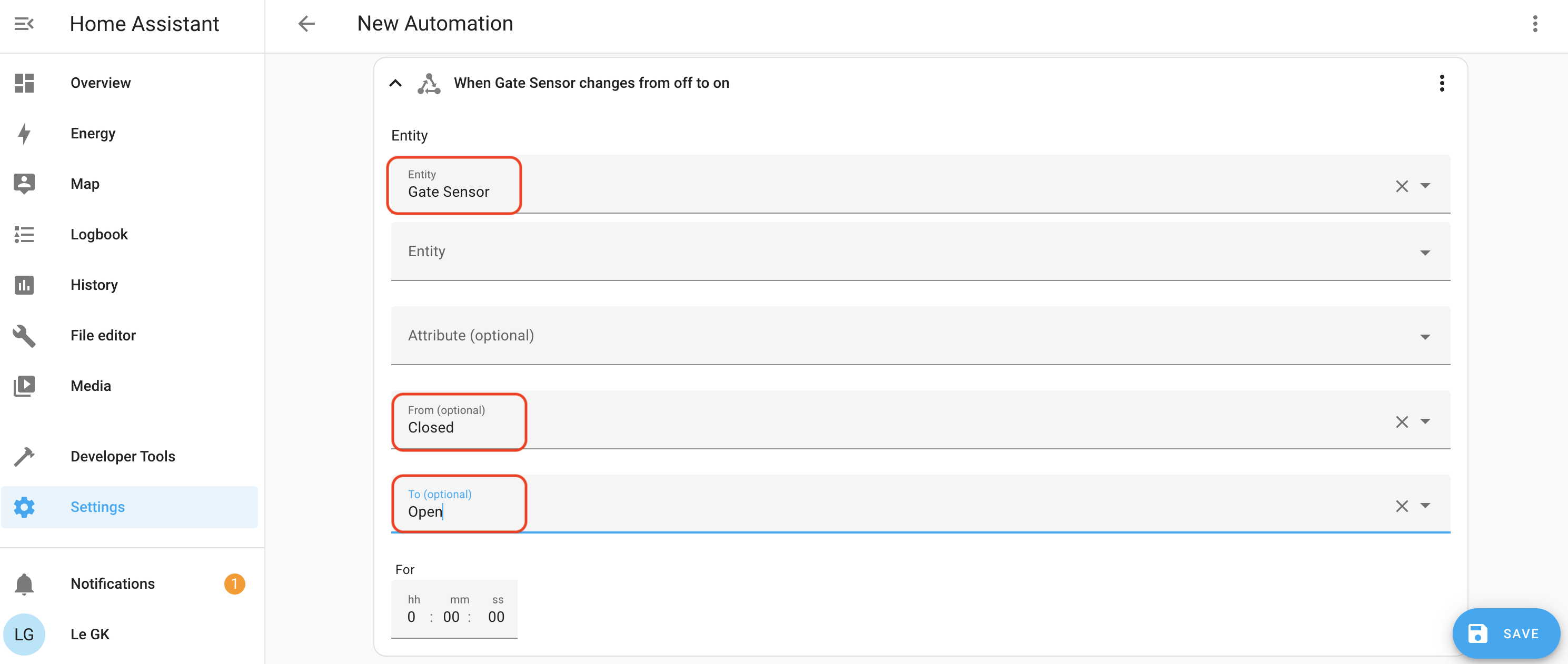
  • Entity: Gate Sensor
  • From: Off
  • To: On
  • For: 0:00:00

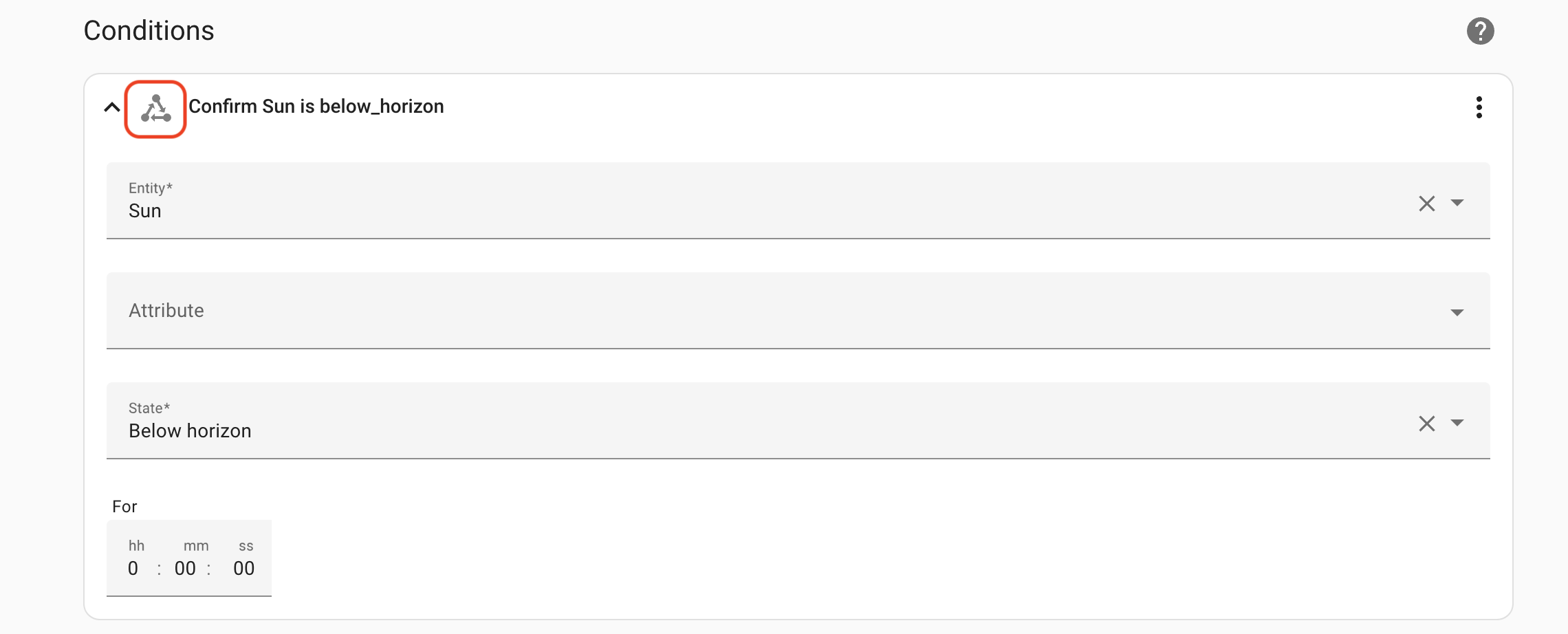
Now we'll set a Condition for the State of the sun so that this only fires when the sun ain't out. You may rush, as I did, into using the Condition of Sun, instead of a State. It probably doesn't matter, but for my Automation, which is tested and works, I used the State, which is indicated by that little triangle of arrows.
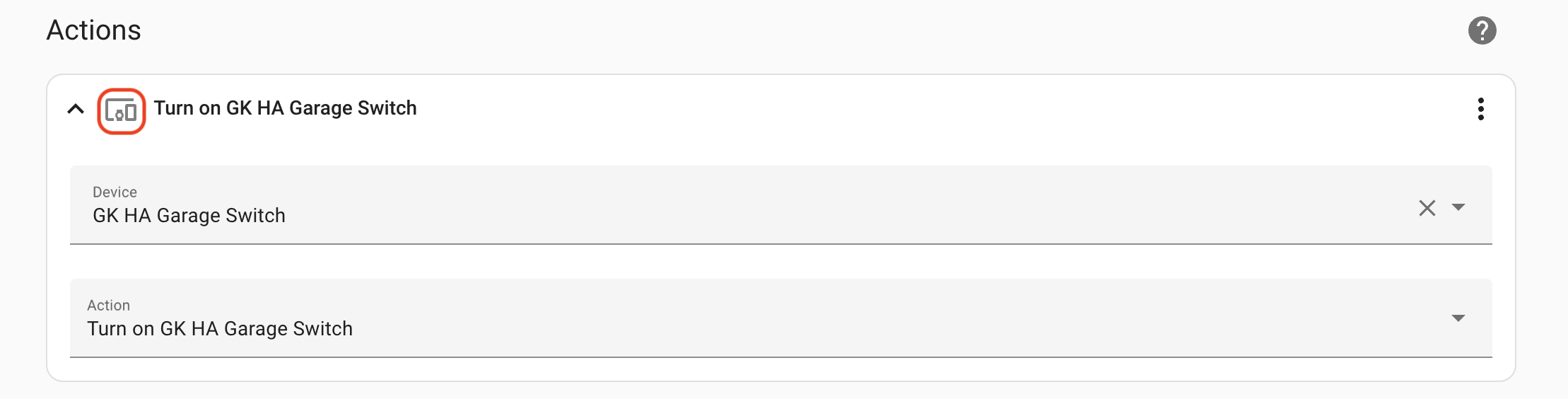
Finally, we'll set the Action, which will be a Device action, as indicated by the little Device symbol outlined in red, below.
You done, dawg. Open and close the sensor a few times to make sure the light switches. It should. If it doesn't, go back and carefully check you followed the instructions. One little thing, like the wrong decoder, or choosing the wrong thing from a dropdown, or whatever, will stop the flow of operations needed to make the magic work.

A quick and geeky note: Home Assistant won't know the state of your sensor until the sensor sends a message. That happens the first fimte you open or close the sensor. This is because sensors in the world of IoT typically don't constantly broadcast their state. That would be a waste of energy. The gate sensor only needs to broadcast one message, as it happens. "I opened." Or, "I closed". That's it. It doesn't need to say "I'm open I'm open I'm open I'm open etc" until it runs out of juice. This is why in the Trigger in HA has to be "Gate sensor changes from off to on", not "Gate sensor is on".

With that...

El FIN. Congrats! You are now a stone cold HA MQTT sensor integration killer. Now get out there and dream up some rad new automations for Home Assistant, and please, make sure you share your best one with the rest of us over on the GK Discord.

A GIANT THANK YOU to Dirk Beer (dirkbeer#3592 on Discord) for walking me through this thing soup to nuts and making sure that us non-engineers have access to getting deep in the weeds with Helium. Rock on Dirk! Additionally, the secretive group known only as the "AF" were instrumental in making sure I got through several hurdles in the realm of MQTT and home networking. AFF!

Archived Comments

Jeremy Wesley - 8/21/2023

Thank you SOO much for putting this together.. As a long time Home assistant user and helium user since the Gen1 Hotspots, this has been on my wish list for a very long time. The MQTT section is the GOLD that I was missing. I really appreciate your post and the videos you make for the community.


Nik - 8/21/2023

No prob, happy it was helpful. Crush!


WJ - 9/11/2023

Does this walk through still work with the Solana Change? I've been following Helium a little the last year or so and have been blown away on how awesome a network like this can work for remote areas like where I'm from.


Nik - 9/11/2023

In general, yes. The rub will be in connecting to MQTT, which not every Console offers.

How Do You Cheat On The Helium Network?

· 12 min read
Nik
Site Owner

This is a general explanation of how gamers are stealing HNT on the network. This is not a "how to". Most of us putting up Helium Hotspots have no idea how the system works. It can feel frustrating to be cheated and not understand it. Let's go through a few of the more common methods. These methods are getting easier for Helium Inc (and the community at large) to detect, but are still very difficult to stop with a set of programmatic rules in the code.

Before you go howling that I'm "giving away the keys to the castle", please know I have run this by various experts. There's nothing in here that is top secret or will give gamers an advantage.

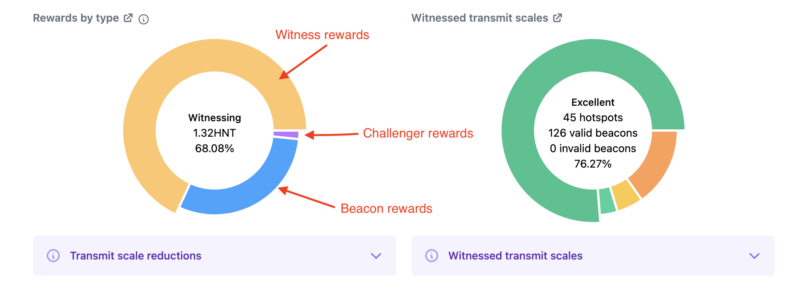
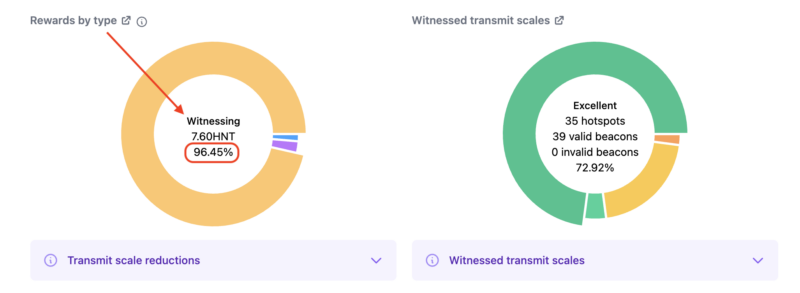
Let's start with what cheaters usually target, which is Witness rewards. A Hotspot earns HNT based mostly (~75%) on how often it Witnesses Beacons. This is documented over on Helium's blog, here.

The obvious incentive is to Witness as much as you can. Most of us do that by getting our antennas in the right location and up high to provide awesome coverage, often at considerable expense and effort. Some members of the community cheat. Here's an example of a blacklisted Hotspot's witness reward breakdown (courtesy of the Hotspotty app for the visual).

Now, to be clear, just because a Hotspot is earning a huge amount of rewards from Witnessing doesn't automatically mean it's cheating. It's just one of a few warning signs.

In contrast, here's a more normal breakdown of what rewards look like.

Gamers cheat in 3 main ways: Attenuation, Witness Stuffing, and Supplementary Witnessing. Those can also be split into Hardware and Software hacks. Hardware hacks are ones using hardware, like an attenuator, or antenna trickery. Software hacks exploit changing the communication (manipulating the metadata) between the packet forwarder and the miner.

Yep, I'ma explain all this. Let's start with Attenuation, which is a hardware cheat.

The validity of a beacon is determined by comparing the strength of the beacon as received to what it should have been theoretically. If the output power of the radio is known, (the native radio power output minus the cable loss plus the antenna gain) it's a straightforward equation to calculate what the signal strength should be on the receiving end.

So, how do you cheat that? One of the most common ways is to use hardware. You put multiple hotspots in a room and attach "attenuators" to their antennas. Attenuators decrease the signal by some known amount; say 1 dB, or 5 dB, or 10 dB etc. Gamers will falsely assert where the hotspots are, calculate what the received signal strength should be at that distance, and attach an attenuator to the antenna to produce that result.

It's fairly simple to do at scale, and with a few technical bits of wizardry to cloak the location of the hotspot, difficult to stop. It's not, however, difficult to SEE. In order for all the hotspots in the room to receive the "correctly altered" signals, they need to be placed at unusually regular distances from each other on the map. You've seen that if you've ever looked at Helium Explorer maps and seen "too perfect" deployments.

This was the biggest problem Helium Inc (NOT the Helium Community at large) had to solve in late 2021, when they moved unilaterally and in secret in order to deny thousands of Hotspots HNT who were clearly gaming with this technique. Helium Inc could see it, but they felt the community couldn't move fast enough to stop it. The ethics of that decision were hotly debated. For now, let's just focus on the cheaters.

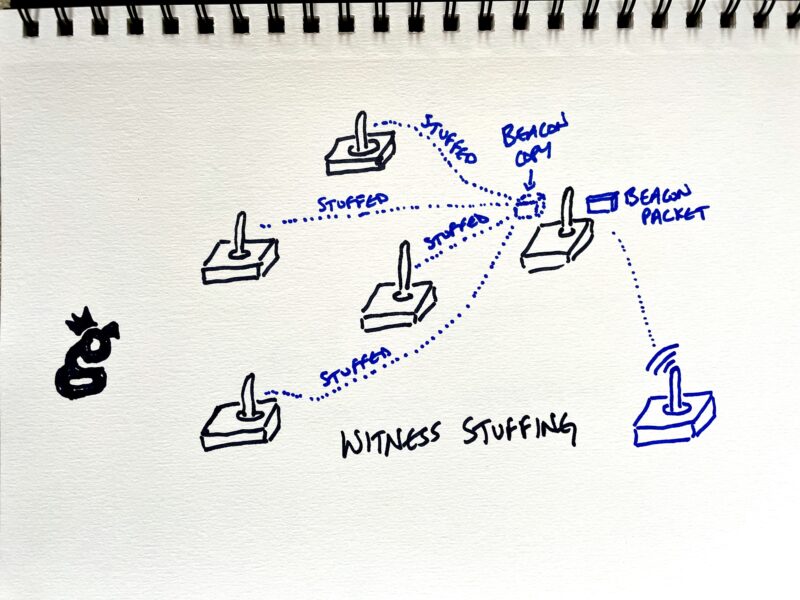
The second cheating method is known as Witness Stuffing. This is a software cheat. It's where you take a group of Hotspots that are all in the same general area and share all of the Beacons any of them Witness between them. In essence, when any one of them Witnesses a Beacon, it turns around and "stuffs" that same beacon into the rest of the group of Hotspots. The rest of the group doesn't have to actually Witness that beacon in order to earn from it.

That multiplies the power of one Witnessed Beacon.

Remember, if a Beacon is Witnessed by more than 14 hotspots, the rewards are randomly assigned to only 14 Hotspots out of that group. A Hotspot can only get rewarded one time per Beacon Witnessed. In this case, the cheater is increasing the chance that one of the Hotspots it's connected to will be in that group of 14 winners.

A cheater can "juice this up" by placing extra packet forwarders, not Hotspots, to report even more beacons. A packet forwarder is the radio part of the hotspot (as opposed to the computer, or miner part) of the Hotspot. By using packet forwarders to share duplicated Witnessed Beacons, the gamer is running a variation of witness stuffing. It's a very clever move, gives a clear advantage, and is completely dishonest.

As a point of clarification, just using multiple packet forwarders doesn't make you a cheater. For example, you might have multiple directional antennas on a building top, each with a packet forwarder, all sending their Witnesses to one miner. That's probably more effort and technological expertise than anyone should go to, but it wouldn't be cheating.

For now, I'd consider the following to be cheating:

  1. Using packet forwarders to stuff copies of packets into miners
  2. Using multiple hotspots per packet forwarder to stuff packets into miners.

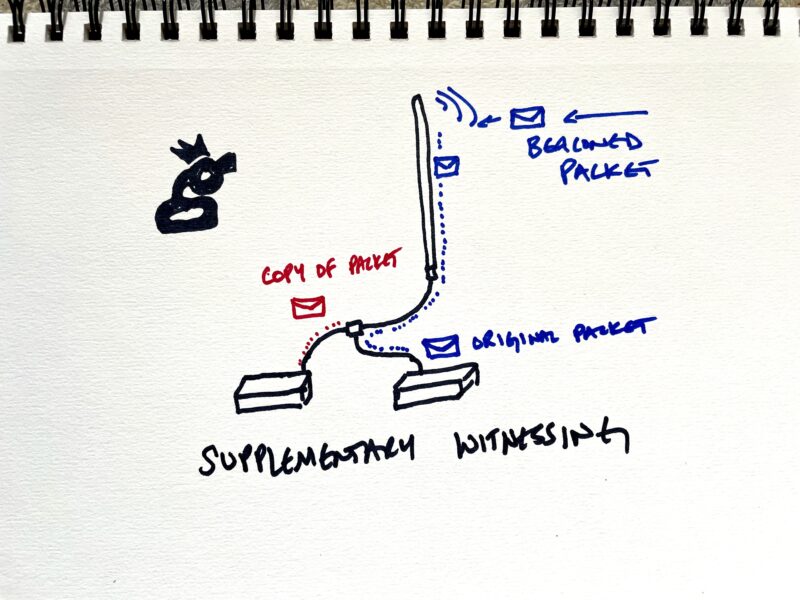
That brings us to a similar grift, which is Supplementary Witnessing. In this case, you have multiple Hotspots hooked up to one well placed antenna. Through the use of radio geekery to manipulate the signal strength, you take any signal received from that antenna and "report it twice", once to each Hotspot.

Remember that only 14 Hotspots can earn from a beaconed packet. If 50 hotspot Witness a packet, only 14 will get rewarded. If you can "supplement" your chances to witness that packet by adding an extra Hotspot into that potential winners group, you can cheat a true provider of coverage out of their rightful chance to earn HNT.

This method allows both (or all) Hotspots connected to the antenna the chance to earn rewards. This is sometimes referred to as "buying extra tickets to the raffle." In addition to stealing by adding unfair probability to earning more HNT for a given antenna placement, it's not useful to the Network. That's because two Hotspots hooked to one antenna provide duplicate coverage.

Keep in mind, "duplicate" is not the same as "redundant". Duplicate is an EXACT match. Redundancy is a backup. An example of redundancy is you and your neighbor a block away are both providing coverage. That coverage is slightly different, but overlapping. If one of you goes down, the other can cover, but you get rewarded for providing your own unique coverage.

Duplicate coverage is using two machines to do the job of one. It's a waste of resources and sucks HNT unfairly out of the reward pool.

So, those are the big 3 ways gamers have been cheating. None of them are difficult for experts to see, but they can be very difficult for the community to stop. This is, in part what HIP 40 is about; making up a list of cheaters that the community agrees on, and stopping those cheaters from earning. It won't be perfect, but it'll be an excellent step in the right direction of a robust Network, able to properly reward good actors and punish bad ones.

There are other HIPs being developed to stop gaming, check out HIP 42 and HIP 44. The DeWi Foundation is extremely interested in combatting gaming and has enough money to buy several small countries AND pay you to fix gaming. If you're an anti-gaming wizard, or a former crook who's ready to put your skills towards useful construction, consider applying for a grant.

If you'd like to watch a video of gaming experts discussing the HIPs mentioned above, we recorded a live session here. Keep in mind this was recorded right before the existence of a denylist was made public, and that denylist had NOT been shared with these experts. Helium Inc kept it top secret, probably to the detriment of the efforts to stop gaming.

The attempt to stop gaming is one of cat & mouse. We'll never hem 'em all up, but we can keep it to a tolerable level if we work together. If you'd like to report a suspected cheating hotspot, head over to suspots.com and keep the spotlight on 'em!

If you'd like to stay in the know when it comes to the latest in Helium, consider joining the Gristle Crüe, where we meet weekly to discuss what's going on and how to best build the Network. Rock on!

Archived Comments

Eric - 1/14/2022

Dude, Well Done. This is information we should all have available to us. Not for malicious intent, but for a better understanding of how the network, and mining works. You the Man.


Christophe Nix - 1/14/2022

This is longtime overdue. Now add a way to claim a removal of that list by proving you cleared the trickery or you never tricked in the first place an make it public and transparent and we might have a new deal with the community.


Matthew Van Eps - 1/21/2022

Great summary! Thanks for writing this out.


Mohamed Ghasoub - 1/24/2022

Wow man thanks for that, extremley informative. I was wondering what that was all about. Silly me thinking that placing your asserting your hotspot a few meters away from the actual location would do it... that or adding a few meteres to the antenna height! What are your thoughts on those two and how frowned upon they actually are? Thanks a ton!!


Nik - 1/24/2022

For now, the elevation doesn't appear to be taken into account. You can reasonably mis-assert by up to 150m for reasons of privacy.


Michael Pilkington - 1/28/2022

I'm just getting started and just got 15 of these hotspots. What matters at this point is that I not somehow get falsely viewed as cheating when I am not. From what I read here... any cheating done would be done intentionally. Nothing would be viewed as cheating when you really do not intend to. So I will view the details as to this article later....after deployment.


Robert Rose - 2/2/2022

Michael Pilkington doesn't have the right idea. The absence of specific intent to break a rule doesn't affect whether or not you have broken a rule. If the excuse ("I didn't know that wasn't permitted") is believable, then it only is relevant to punishment. You still broke the rule. Maybe you just get a warning, or are only banned for a short time, instead of being banned for all time. I think Nik has done us a service, and we should thank him.


Chris - 2/6/2022

Where I can find details about the 150m you're allowed to miss-assert location? Why are they so vague on this details? These to me are very important.


Nik - 2/6/2022

Hi Chris, there aren't any details on that. Technically, you should assert exactly where you are. I think mis-asserting within 150m for privacy reasons is fine and so far I haven't seen any negative repercussions from that.


Ss - 4/1/2022

Also, they can never perfectly guess your location from radio wizardry, because they can't take in account for trees and natural obstructions, nor whether your indoor or outdoor, etc.


Ss - 4/1/2022

Plus other radio interference, there is so many variables that they can not predict. Only if they were physically at the location with a much of very high tech radio equipment could they figure that out. However, mappers are closing this gap.


NT - 5/14/2022

Who the hell buys 15 miners when if you run them legitimately you will NEVER get your return on capital? I got into the project because I thought it had great merit and I could contribute to the community. However its only when you invest and go down the rabbit hole, you find its full of scams, rip-offs and unfairness. Such a shame and will lead to the blow-up of the project.


The Helium CLI Wallet - Not For The Faint Of Heart

· 11 min read
Nik
Site Owner

There's almost no good reason to use the CLI (Command Line Interface) wallet for a normal person, but...not everyone who gets into Helium is normal. If, like me, you're faced with having to use it, this series of instructions might help.

This is NOT written for experts who know what they're doing; they'll laugh at this. This is NOT written for most of the Helium community. Trust me, you don't need to use the CLI wallet for regular tasks. This IS written for someone like me; slightly curious, driven by the usual HNT incentives, and willing to futz around with things they don't understand. If that's you, enjoy!

It started off with a friend of mine creating a 24 word wallet. Yes, you can create those, just not on the Helium app.

We were testing a hotspot I'd sent him and wanted it to "live" in its own wallet during testing. Once testing wrapped up, I wanted to move the hotspot from the wallet where it was to another wallet where I have other hotspots. This was in part just to keep all HNT earnings in one place, and in part to have (MUCH) easier control over it for me, as a "generally-non-code-using" member of the Helium community.

Now, my friend is a security wizard and fluent in about a million coding languages, so for him managing anything via CLI is just standard stuff. For me, it was more like being thrown in the middle of a Russian street fair knowing I had to buy a very specific item; say a 17mm hex head bolt with a thread pitch of 1.6.

I don't speak Russian, but damn, I really wanted that hex head bolt!

This particular hotspot serves as one of my tracking units, so I re-assert the location every time I go to track an event, and then when I bring it back. Being able to easily move it (dragging a pin on the app) is important to me.

So, there I was, with an open Terminal window on my Mac and no real idea what to do. My friend had just taken a very time-demanding job, so he was mostly unavailable. We'd grab a few minutes here and there, but at the end of the day what you need for this kind of thing is about 3 hours of solid "Let me walk you through this". The reason you need 3 hours for an expert to help you is they have to deal with you making about 2 hours and 59 minutes worth of mistakes along the way. In this case, despite being extraordinarily generous, my friend just didn't have that time to give at this moment. So...

In 40+ years of zinging around the sun on this spaceship we call Earth, I've found that if you ask enough people for help, read as much as you can on Google, and just keep going, you figure things out.

The following is a condensation of the process, leaving out all the mistakes I made over the course of a few days, including missing key formats, entering the wrong information, entering information incorrectly, using the wrong commands, forgetting a vital letter, relaying what I was seeing incorrectly to experts, and yep, even missing a single syntax hiccup.

Working with code can be VERY frustrating. If you get just one tiny thing wrong, the computer, the program, and in general, the world, doesn't give a single shit. Still, when you get it right, it is extraordinarily satisfying.

Ok, here we go!

Step 1: Get the Helium Wallet onto your computer.

Start here and load Helium's CLI wallet onto your local computer. Look for the "Releases" link, click that, then download the appropriate tar.gz file. You'll need to unzip that, then you can run the full PATH or just use ./helium-wallet in front of your commands.

I like to start out by ls-ing, just so I have a record of what is where. I'm new at this, so the old hands may laugh at my constant ls habit, but it's very useful for me.

nik@my-computer downloads % ls
helium-wallet-v1.6.8-x86-64-macos helium-wallet-v1.6.8-x86-64-macos.tar.gz

Now that you've made sure you have what you need on your computer, the next step is to use it!

Before you go on, if you get stuck on any of these steps or want to know more, just type -h or --help at the end of your command. That'll give you the help menu for that particular command or subcommand, which *can* be useful. It does NOT always tell you what you're missing. Ask me how I know. :)

nik@my-computer Downloads % /Users/nik/Downloads/helium-wallet-v1.6.8-x86-64-macos/helium-wallet --help                                           
helium-wallet 1.6.8
Common options for most wallet commands

USAGE:
helium-wallet [OPTIONS] <SUBCOMMAND>

FLAGS:
-h, --help
Prints help information

-V, --version
Prints version information


OPTIONS:
-f, --file &lt; files>...
File(s) to use [default: wallet.key]

--format &lt; format>
Output format to use [default: table] [possible values: table, json]


SUBCOMMANDS:
balance Get the balance for a wallet. The balance is given in HNT and has a precision of 8 decimals
burn Burn HNT to Data Credits (DC) from this wallet to given payees wallet
commit Commit a transaction to the blockchain
create Create a new wallet
help Prints this message or the help of the given subcommand(s)
hotspots Display list of hotspots associated with wallet or transfer a hotspot to another wallet
htlc Create or Redeem from an HTLC address
info Get wallet information
multisig Commands multi signature transactions
oracle Report an oracle price to the blockchain
oui Create or update an OUI
pay Send one (or more) payments to given addresses
request Construct various request (like payment) in a QR code
securities Work with security tokens
upgrade Upgrade a wallet to the latest supported version of the given format. The same password is used to
decrypt the old and encrypt the new wallet
validators Commands for validators
vars Commands for chain variables
verify Verify an encypted wallet

Step 2: Load the selling wallet

This is the one with 24 words, so I needed to use "bip39" after the --seed command.

nik@my-computer ~ % /Users/nik/Downloads/helium-wallet-v1.6.8-x86-64-macos/helium-wallet create basic --seed bip39 --output adw-wallet.key
Space separated seed words:[this is where you enter your 24 word seed phrase]
Password: [enter the password you want to use for this wallet on this computer]

That will give you an output confirming you've loaded the correct wallet (it'd be hard to load the incorrect wallet, but it's nice to see confirmation). I'll show you what that looks like in the next step.

Step 3: Load the buying wallet

This is the 12 word "normal" wallet, so I used the "mobile" after the --seed command.

nik@my-computer downloads % /Users/nik/Downloads/helium-wallet-v1.6.8-x86-64-macos/helium-wallet create basic --seed mobile --output gki-wallet.key
Space separated seed words: [this is where you enter your 12 word seed phrase]
Password: [enter the password you want to use for this wallet on this computer]

That should give you an output that looks like this (you will have seen something similar when you loaded your selling wallet).

+---------+-----------------------------------------------------+
| Key | Value |
+---------+-----------------------------------------------------+
| Address | 14sT3TpAqxahjy6aGFvTHB4zqCX1mx31a1aYwNJ56TtzkM1DzQC |
+---------+-----------------------------------------------------+
| Sharded | false |
+---------+-----------------------------------------------------+
| Verify | true |
+---------+-----------------------------------------------------+
| PwHash | Argon2id13 |
+---------+-----------------------------------------------------+

The address in that table should match your buying wallet's address.

Step 4: Use the CLI "sell" command

This tells the blockchain what your selling wallet is doing ("transferring" a hotspot.)

nik@my-computer Downloads % /Users/nik/Downloads/helium-wallet-v1.6.8-x86-64-macos/helium-wallet -f adw-wallet.key hotspots transfer sell 11oXZSoRW7pLQppvbQfbipzPpe4DbuUzssKHvKHkvWjvvJ5FmyW 14sT3TpAqxahjy6aGFvTHB4zqCX1mx31a1aYwNJ56TtzkM1DzQC  
Password: [the password to the selling wallet's key file]

Funnily enough, you don't need to use the "commit" subcommand when you sell, only when you buy. Weird. Anyhoo...that Sell command will give you an output like this:

2gGvAQohAGmlHdiIljDi7IOvWS2+Cx8fVYwRumnnfw3rrz/cnCdWEiEBcUAYhbrCcB2pYOhl3osDLN9SSPP1WOmzB21uDUKLDB8aIQH9o5Dm6AUfxvGboCq4knzehnEZGWs4NN2MGNuPu1zMmCJAxsNIL0AHvrbUcYgXcRryKIYCTTR7wY0hBSqn50E9dhz9jwjCtH621HDFVNpCghnb/AonxlOWxE8GPsTVYpsFCEDYrQM=

You'll need that in the next step.

Step 5: Use the CLI "buy" command to receive the sold hotspot.

nik@my-computer Downloads % /Users/nik/Downloads/helium-wallet-v1.6.8-x86-64-macos/helium-wallet -f gki-wallet.key hotspots transfer buy --commit 2gGvAQohAGmlHdiIljDi7IOvWS2+Cx8fVYwRumnnfw3rrz/cnCdWEiEBcUAYhbrCcB2pYOhl3osDLN9SSPP1WOmzB21uDUKLDB8aIQH9o5Dm6AUfxvGboCq4knzehnEZGWs4NN2MGNuPu1zMmCJAxsNIL0AHvrbUcYgXcRryKIYCTTR7wY0hBSqn50E9dhz9jwjCtH621HDFVNpCghnb/AonxlOWxE8GPsTVYpsFCEDYrQM=
Password: [the password to the selling wallet's key file]

Hit "enter" after your password, and you should see something like this:

{
"hash": "AfPo-ulQVWAMQVNT8z309XvBVQGEDM5qxoo9a1wJ8kA",
"txn": "2gHxAQohAGmlHdiIljDi7IOvWS2+Cx8fVYwRumnnfw3rrz/cnCdWEiEBcUAYhbrCcB2pYOhl3osDLN9SSPP1WOmzB21uDUKLDB8aIQH9o5Dm6AUfxvGboCq4knzehnEZGWs4NN2MGNuPu1zMmCJAxsNIL0AHvrbUcYgXcRryKIYCTTR7wY0hBSqn50E9dhz9jwjCtH621HDFVNpCghnb/AonxlOWxE8GPsTVYpsFCCpARz7hD7AUaswLWe0H+99OtesPqKCyLuToqpTvlR6QezVx0I4bRtOdrGB7NoGtQXRFWVeOKS3Y2g6RB31gTEUGAUDYrQM="
}

Step 6: Check your work using the Helium API.

Copy and paste that "hash" from above into the Pending Transactions URL on the Helium API, like this:

https://api.helium.io/v1/pending_transactions/AfPo-ulQVWAMQVNT8z309XvBVQGEDM5qxoo9a1wJ8kA

At first it'll return something that says "pending", but after a few tense minutes of wondering whether you got it all right, something like this should come up. The key thing you're looking for is that the "status" changes to "cleared".

{"data":[{"updated_at":"2021-09-15T14:49:03.471321Z","type":"transfer_hotspot_v1","txn":{"type":"transfer_hotspot_v1","seller":"13od1JZtPrqJY8dAQoDVwGmDWYcPUGXqfXMyGsDGznPXDBUREd4","hash":"AfPo-ulQVWAMQVNT8z309XvBVQGEDM5qxoo9a1wJ8kA","gateway":"11oXZSoRW7pLQppvbQfbipzPpe4DbuUzssKHvKHkvWjvvJ5FmyW","fee":55000,"buyer_nonce":0,"buyer":"14sT3TpAqxahjy6aGFvTHB4zqCX1mx31a1aYwNJ56TtzkM1DzQC","amount_to_seller":0},"status":"cleared","hash":"AfPo-ulQVWAMQVNT8z309XvBVQGEDM5qxoo9a1wJ8kA","failed_reason":"","created_at":"2021-09-15T14:48:30.013020Z"}]}

Step 7: Relax. You're done.

My great hope is that this saves at least one person the few days it took me to bumble through this. An enormous thanks to @madninja, @tteague and @jerm at Helium for shining a light or holding my hand through the worst parts, and a generous thanks to the many anonymous or unnamed folks who left clues throughout the internet for me.

Rock on, Heliites!

Archived Comments

Brandon - 10/25/2021

I learned to used the CLI wallet a few weeks back, because I wanted to store my HNT with my Ledger wallet. Now I do not have to worry about "not my keys not my coin", I feel much better more secure keeping it stored there.


Gary - 10/30/2021

Nic, Thanks for writing this blog post. Can you shoot a screen capture video showing us how to do this on Windows 10. It's seems like 90% of the videos talking about creating a CLI wallet are made by people run Mac OS or Linux. All of the videos made by Helium, are by or are for developers. People like me and you, don't seem to exist. Or maybe there is an infinitesimal number of us that don't know how to do this. That video would be perfect for your YouTube Channel. @Brandon- Once I get one set up, I want to do the same thing.


Nik - 10/30/2021

Hi Gary, I'm actually on a Mac with no Windows around, sorry mate! I get your frustration though. Just keep going and looking into it, you'll get it!


Hampus - 12/3/2021

Hi Nik! I did this quite a few times in October without much problem. Now, however, it seems as if they have changed the commands and the workflow. It seems to me that I should do helium-wallet.exe -f wallet.key hotspots transfer --commit I get some output and a hash, but no base64 string. Do you know how to transfer hotspots now? Really happy for some help.


Nik - 12/3/2021

Hi Hampus, the best place to get help is over in the Discord in the official Helium Server, look for #cli-wallet-development


E. - 12/3/2021

Thank you. I just figured this out today with a Ledger. It took we a couple weeks of frustration before realizing that I could drag and drop the cli file to create a new directory..... Years of working with Adobe has shown me that the answer to every annoying issue is a couple simple key strokes away from success. It' just figuring it out.


Jeroen - 9/13/2022

Hi Nik, great explanation on how to transfer a hotspot. I accidently onboarded my helium hotspot to the Helium wallet app which is not for storing hotspots as it seems. So now i need to transfer it to the Helium Hotspot app. In step 4 you mention the adress? 11oXZSoRW7pLQppvbQfbipzPpe4DbuUzssKHvKHkvWjvvJ5FmyW CAn you tell me where this value comes from? Greetings Jeroen


Nik - 9/13/2022

It's just a filler address; we created a wallet specifically for the demo.


Mitch Koulouris - 10/30/2022

I’m quite a bit rusty on my programming skills. This appears to be a way to transfer a hotspot from a CLI (24 word) helium wallet to a Helium app (12-word) wallet. I mistakenly had a miner transferred to a CLI wallet and need to move it to the Helium app (12-word) wallet in order to assert its new position. Am I correct in understanding what you’ve show above accomplishes this?